
 Meesho
 Flipkart
 Amazon
 Myntra
 JioMart
 Snapdeal
 GlowRoad
 Limeroad
 Shop101
 Shopdeck
 Citymall
 Ajio
 Other courier PDF
 PDF to Word
 PDF to Excel
 Edit PDF
 Merge PDF
 Split PDF
 Crop PDF
 Remove pages
 Extract pages
 Reorder pages
 Rotate PDF
 Page numbers
 Watermark PDF
 JPG to PDF
 PDF to JPG
 Compress PDF
 Unlock PDF
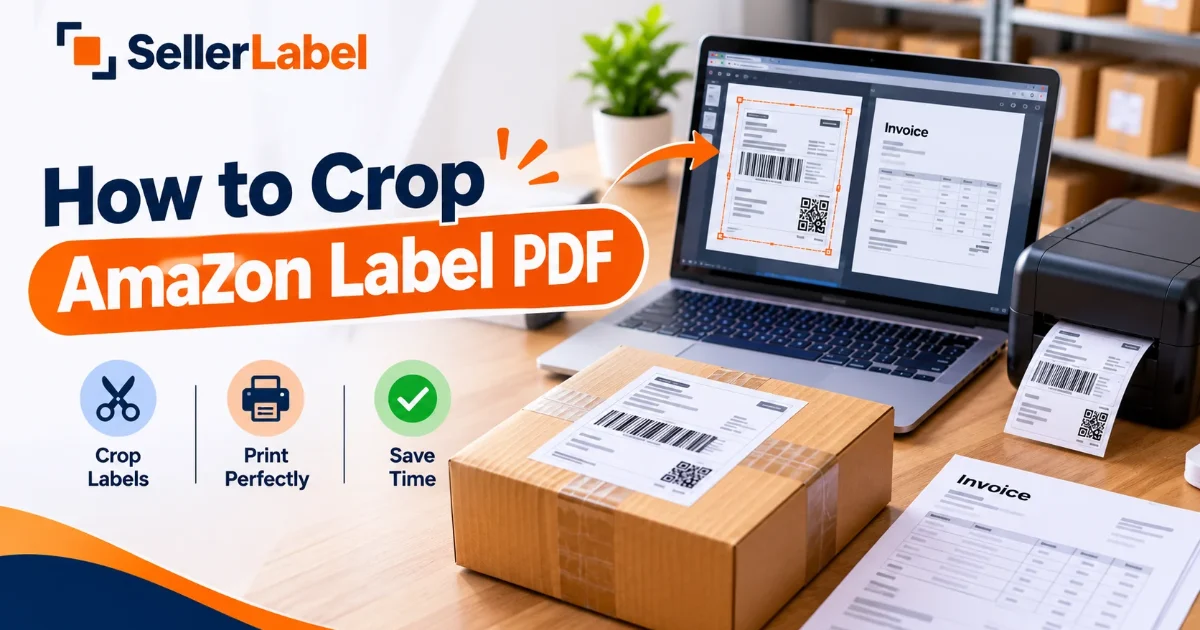
Preparing shipping labels is a routine task for Amazon sellers, but managing downloaded PDFs can become time-consuming when several orders need to be dispatched together. A shipping-label PDF may contain extra white space, invoice pages, packing slips, or multiple labels arranged across different pages. Printing the entire document without adjusting its layout can waste paper and make the packing process less convenient.
The problem becomes more noticeable when you process dozens or hundreds of orders. You may need to crop labels to the right size, keep invoices separate, identify products by SKU, and prepare documents for either a thermal printer or a regular A4 printer.
Fortunately, you do not always need to edit every PDF manually. You can use the SellerLabel Amazon Label Crop Tool to prepare Amazon shipping-label PDFs for a more convenient printing workflow.
In this guide, you will learn how to crop Amazon label PDFs online, choose the right print size, handle invoices, organize bulk files, and avoid common barcode and printing problems.
What Is an Amazon Label Crop Tool?
An Amazon label crop tool helps adjust the printable area of a shipping-label PDF so that the label is easier to print in the required format.
Depending on the source document and the tool's available features, the process may involve cropping unnecessary margins, preparing labels for thermal printing, or separating shipping labels from additional document pages.
For example, suppose you download a PDF containing a shipping label and an invoice on the same page. If you only need the label for the outside of a parcel, printing the entire page may not be the most convenient option. A suitable cropping workflow can help prepare the label separately while allowing you to retain the original invoice when needed.
Some specialized label-processing tools also offer features such as SKU sorting, SKU and quantity stamping, multi-file processing, and different page layouts. These are separate capabilities from basic PDF cropping, so always check which options your selected tool actually supports.
Why Do Amazon Sellers Need to Crop Shipping Labels?
1. To print labels in the correct size
Amazon shipping documents may not be arranged in the exact format required by your printer. Cropping can help prepare a label for compatible thermal label stock or a suitable A4 printing layout.
2. To reduce unnecessary paper usage
Printing a complete A4 page for every order can be inefficient when you only need a smaller shipping label. A suitable 4×6-inch layout or a supported multi-label A4 format can help reduce wasted space.
Actual paper savings depend on the original PDF, printer, label stock, and selected layout.
3. To manage invoices and packing slips
Some shipping PDFs contain additional documents that you may not need to print with the shipping label. Separating the label from those pages can make dispatch printing more organized.
However, do not discard invoices or other documents that your business needs to retain. Keep the original PDF or save required documents separately.
4. To make bulk order processing easier
When you have many orders to dispatch, opening and adjusting every PDF individually can create unnecessary work. A batch-oriented workflow can make it easier to prepare several files together.
5. To improve product identification during packing
If you sell multiple products or variations, identifying the correct product for each order is essential. SKU-based organization and visible product identifiers can help packing teams find the right item more quickly when those features are supported by the chosen tool.
How to Crop Amazon Label PDF Online for Free
You can use the SellerLabel Amazon Label Crop Tool to get started with preparing Amazon shipping-label documents.
Follow these steps to create a print-ready file.
Step 1: Download your Amazon shipping-label PDF
Log in to Amazon Seller Central and open the relevant order-management section. Select the orders you are preparing for dispatch and download their shipping-label PDFs using the available options.
Keep the original documents in a separate folder. This gives you a backup if you need to reprint a label or retrieve an invoice later.
Step 2: Open the Amazon label crop tool
Visit the Amazon Label Crop Tool on SellerLabel.
Follow the instructions displayed on the page to select your PDF and access the available processing options. Make sure you are using the Amazon-specific tool for your Amazon shipping documents.
Step 3: Select your PDF file
Choose the shipping-label PDF you downloaded from Seller Central. If you are preparing multiple orders, check the tool's available file-selection options and confirm that the selected documents belong to the correct batch.
The exact upload limits and available settings can depend on the current tool interface.
Step 4: Choose the appropriate output format
Decide how you intend to print the label.
-
For compatible thermal label printers, a 4×6-inch layout is commonly used.
-
For regular office printers, an A4 layout may be more suitable.
-
If you need several labels on one sheet, check whether your selected workflow supports a multi-label layout.
Do not assume every PDF tool offers all these options. Confirm the available formats before processing your documents.
Step 5: Review invoice and page requirements
Check whether your original PDF includes invoice pages, packing slips, or other additional content.
If you only need shipping labels for printing, use a supported label-only workflow where available. Keep required invoices and records separately. If the tool does not offer automatic invoice removal, you may need to use a suitable PDF editor or another supported document workflow.
Step 6: Process and download the PDF
Run the available cropping operation and download the resulting file.
Open the new PDF before printing. Confirm that the label is complete, the barcode is visible, and the document is arranged as expected.
Step 7: Print a test label
Print one label using the intended printer and paper size. Check that the shipping information is readable and the barcode is not clipped.
Once the test output is correct, continue with the remaining orders.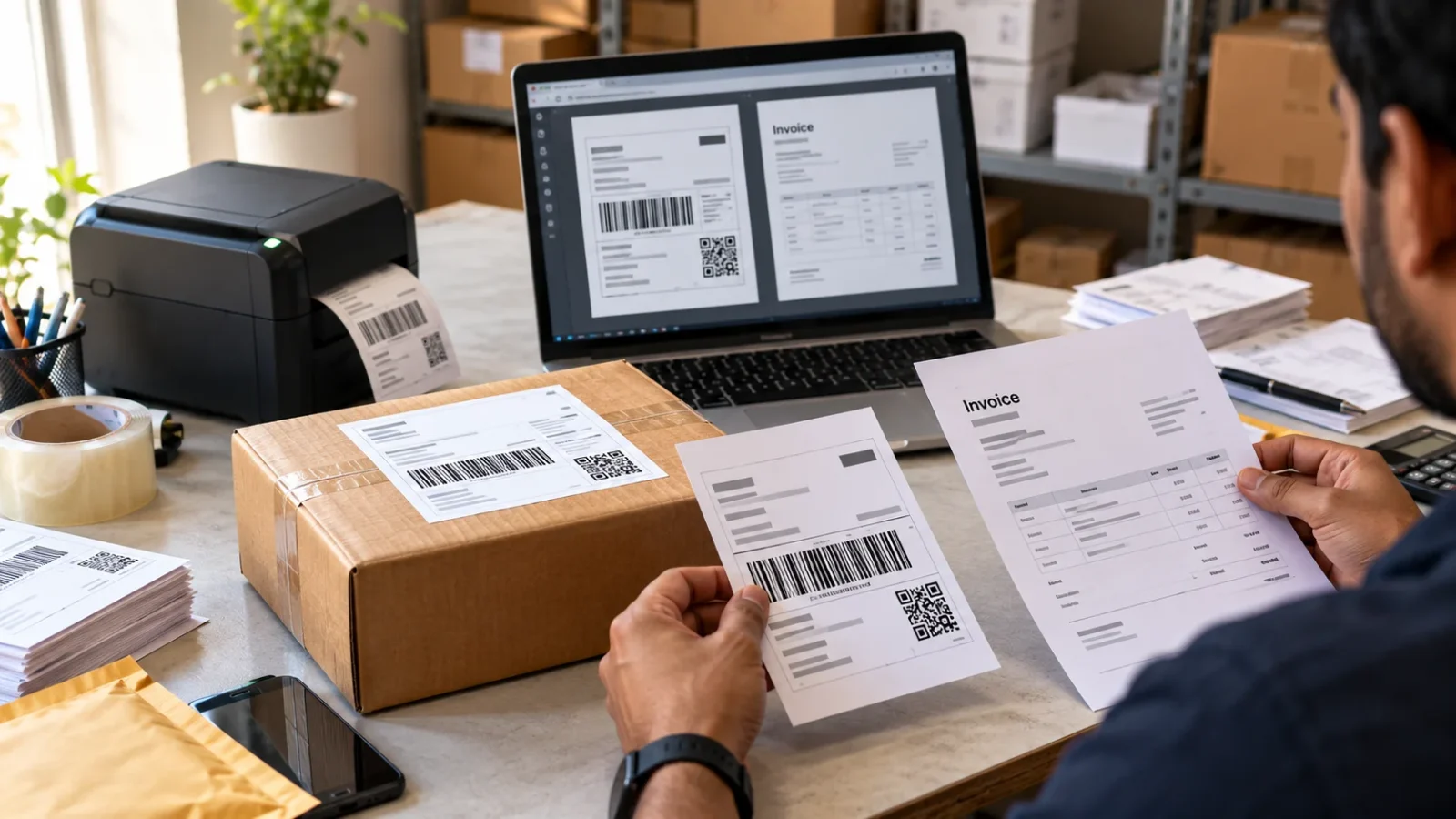
How to Crop Amazon Shipping Labels to 4×6 Inches
A 4×6-inch shipping label measures approximately 100 × 150 mm. This format is widely used for shipping labels printed on compatible thermal label printers.
When preparing a PDF for 4×6 printing, consider both the dimensions of the cropped document and the printer's settings.
Check the output dimensions
Choose a supported 4×6-inch output if your tool provides that option. After processing, open the PDF and verify that the page dimensions match your intended label stock.
A correctly selected output size helps avoid a label being printed too small or occupying the wrong area of the sticker.
Set the correct printer paper size
Select the paper size that matches the actual roll or label stock installed in your printer. Depending on the printer, this may be listed as 4×6 inches or 100 × 150 mm.
If the PDF is correctly sized but the printer uses A4 settings, the final result may still be unsuitable.
Use appropriate scaling
When the PDF is already prepared for the intended label size, choose Actual Size or 100% scale where appropriate.
Settings such as “Fit to Page” can resize the document. If a label prints too small, check the print dialog and paper settings before changing the PDF itself.
Keep the barcode intact
Never crop so tightly that part of the barcode, tracking information, or delivery address disappears. Inspect the entire label in the PDF preview and test-print a sample.
A label that looks clear on screen can still have scanning issues if the printer output is stretched, smudged, or clipped.
How to Print Amazon Labels on A4 Paper
Not every seller uses a thermal printer. If you print shipping labels on a regular office printer, A4 paper can be a practical option.
Choose an A4-compatible layout
Prepare the document using a supported A4 output format. Depending on the source PDF and available processing options, you may be able to arrange labels on a full page or use a multi-label layout.
What is a 4-up label layout?
A 4-up layout places four labels on a single A4 sheet. This can be useful when the labels fit the page correctly and your workflow is designed for that arrangement.
However, a 4-up layout is not automatically suitable for every label or sticker sheet. Check the label dimensions and printer margins before using it.
Check paper and sticker alignment
If you are printing on pre-cut label sheets, the output layout must match the physical positions of the labels on the sheet. Otherwise, information may print across the gaps or outside the sticker boundaries.
Print a test page on ordinary paper first if you are unsure about the alignment.
Avoid unwanted resizing
Use the print preview to check the placement of all labels. Confirm that the page orientation, margins, and scaling settings are appropriate for your selected layout.
How to Remove Invoice Pages from Amazon Label PDFs
Invoice handling is an important part of shipping-document preparation, especially when a PDF contains both shipping labels and additional order documents.
A label-only print file can make the dispatch process more convenient, but invoice retention must be handled separately when required.
Why separate invoices from shipping labels?
Shipping labels are attached to parcels to support delivery and handling. Invoices contain transaction information and may be required for customer documentation, accounting, or applicable business records.
Printing every page together may be unnecessary for some workflows. Separating the documents can make it easier to print labels in the desired format while keeping invoices organized.
Can invoice removal be automated?
Some dedicated Amazon label-processing tools advertise automatic invoice or packing-slip removal. A general PDF cropper may only adjust page boundaries and may not recognize or remove entire invoice pages.
Before uploading a batch, check whether the selected tool offers invoice-page removal or only basic cropping.
What if the invoice is on the same page as the label?
Cropping the page boundaries and removing a separate invoice page are different operations. If the label and invoice share one page, you may need a tool that supports the appropriate output selection or use a PDF editor to create the required document.
Always inspect the final output to make sure the label remains complete.
Should you delete the original invoice PDF?
No. Keep a copy of the original shipping document and retain any invoice or other records required for your workflow. Cropping a print file should not accidentally become permanent loss of an important business document.
How to Sort Amazon Labels by SKU
SKU stands for Stock Keeping Unit. It is an identifier used by a seller to distinguish products or product variations in inventory.
For sellers handling many orders, SKU-based sorting can help organize picking and packing. Instead of locating products in a random order, a team can process similar items together when the order data and tool support that workflow.
Why is SKU sorting useful?
Imagine you have 60 orders containing several product types. If the labels are grouped by product SKU, a packer may be able to collect the same product for multiple orders before moving to the next group.
This can reduce repeated trips between storage locations and make the packing process more structured.
How does SKU stamping work?
A SKU stamp adds a product identifier to a shipping label or another part of the output. Some specialized tools also support adding quantity information.
This can make the product easier to identify during packing, but the result depends on whether the tool can extract the required data from the source documents.
What should you check before using SKU sorting?
-
Confirm that the source PDF contains the necessary product information.
-
Check whether the tool supports extracting or adding SKUs.
-
Review the sort order before downloading the final PDF.
-
Verify that any stamped SKU and quantity match the order.
-
Keep order identifiers available for resolving exceptions.
Important: Basic PDF cropping does not automatically provide SKU sorting or SKU stamping. Confirm that these features are available in the tool you choose.
How to Process Multiple Amazon Label PDFs in Bulk
If you download separate PDFs for different order batches, processing them one by one may take longer than necessary.
A bulk workflow can help you organize documents for a dispatch session, provided the selected tool supports multiple-file uploads.
Step 1: Group the source PDFs
Organize files by dispatch batch or another meaningful category. Check the filenames and order details before combining files from different sessions.
Step 2: Check upload limits
Review the supported file types, file-size restrictions, and number of files permitted by your selected tool. Large files may need to be processed in smaller groups.
Step 3: Choose the required settings
Select the appropriate crop size and any additional supported options. If you need invoice removal, SKU sorting, or quantity stamping, verify that those specific functions are available.
Step 4: Preview the processed documents
Check the page order, label dimensions, and document content before printing. A combined PDF is only useful if the correct labels and supporting documents remain together.
Step 5: Print and verify the batch
Print a sample first, then proceed with the batch once the size and barcode quality are correct. Match each label to its parcel before dispatch.
Need to combine or separate PDF files?
SellerLabel also offers general PDF utilities for document organization:
-
Use the Merge PDF Tool when you need to combine multiple PDF files into one document.
-
Use the Split PDF Tool when you need to separate a larger PDF into smaller files or page groups.
-
Use the Crop PDF Tool for general PDF-cropping tasks beyond marketplace-specific shipping labels.
These tools serve different purposes. Merging or splitting a PDF does not necessarily crop labels, remove invoice pages, or sort products by SKU.
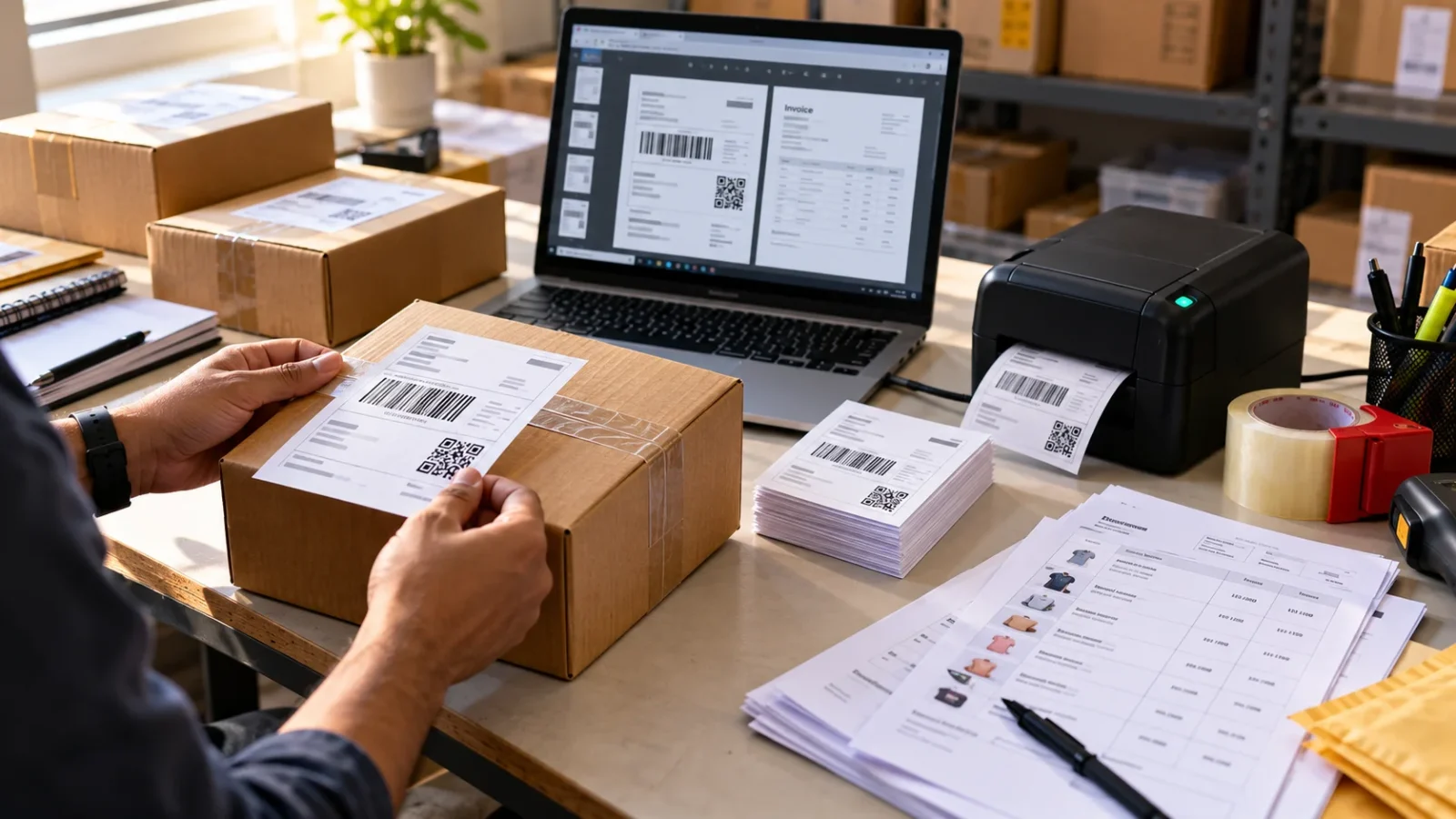
Common Amazon Label Cropping Problems and Solutions
1. The label prints too small
Possible cause: The printer is scaling the document, or the output PDF does not match the selected paper size.
Solution: Check the PDF page dimensions and printer settings. Use Actual Size or 100% scale where appropriate, then print another test label.
2. The barcode is cut off
Possible cause: The crop boundary is too tight, or the printer's printable area does not match the PDF.
Solution: Inspect the entire label in the preview. Make sure the barcode and required shipping information remain inside the printable area.
3. The invoice is still included
Possible cause: The selected tool only crops page margins and does not remove invoice pages.
Solution: Check whether the tool offers invoice removal. If not, use an appropriate PDF editor or a workflow that supports separating the required pages.
4. The invoice is missing
Possible cause: The output excludes additional pages, or the invoice has been saved separately.
Solution: Check the original PDF and the output folder. Retain the original file so you can recover required documents if needed.
5. The label is rotated
Possible cause: The page orientation and printer settings do not match.
Solution: Check the PDF preview, orientation, and paper-size settings before printing the full batch.
6. Some pages crop correctly while others do not
Possible cause: The source PDF may contain different page layouts or label arrangements.
Solution: Compare the affected pages with the original file. Process different layouts separately when necessary, and inspect the output before printing.
7. The labels do not align with A4 sticker sheets
Possible cause: The PDF layout does not match the physical sticker-sheet dimensions.
Solution: Confirm the number of labels per sheet, sticker dimensions, orientation, and margins. Test the layout on ordinary paper before using sticker stock.
8. SKU information is incorrect or missing
Possible cause: The source document does not contain the required product data, or the selected tool does not support SKU extraction or stamping.
Solution: Check the original order information and the tool's supported features. Verify all product identifiers before using the output for packing.
9. The downloaded PDF has the wrong page order
Possible cause: Files were merged in an unexpected order, or a sorting option changed the sequence.
Solution: Preview the final PDF and compare it with your order batch. If necessary, reorganize the source files and process them again.
Best Practices for Amazon Shipping Label Printing
A consistent document-preparation process can help reduce avoidable printing and packing errors.
-
Use the original PDF: Avoid screenshots when the original shipping-label document is available.
-
Choose the print format first: Decide whether you need a 4×6 thermal label or an A4 layout.
-
Keep required invoices: Separate documents for printing without losing records that your business needs.
-
Use supported features only: Confirm whether your selected tool supports invoice removal, SKU sorting, quantity stamping, or bulk uploads.
-
Check the barcode: Make sure it is complete, clear, and not distorted.
-
Print a sample: Verify the physical size before processing the entire batch.
-
Keep files organized: Use separate folders for original PDFs, processed labels, and invoices.
-
Verify each order: Match the label with the correct product and parcel.
-
Review the output: Check page order and dimensions after merging, splitting, or cropping documents.
-
Retain a backup: Keep the original files until you have confirmed that the processed documents are correct.
Frequently Asked Questions
1. How do I crop an Amazon label PDF online for free?
Download the shipping-label PDF from Amazon Seller Central, open a suitable Amazon label-cropping tool such as the SellerLabel Amazon Label Crop Tool, and follow the available upload and processing instructions. Select a suitable output format, download the processed PDF, and inspect it before printing.
2. How can I crop an Amazon shipping label to 4×6 inches?
Choose a supported 4×6-inch output option if available in your selected tool. After processing, verify the PDF dimensions and set the printer paper size to match the physical label stock. Use appropriate scaling settings and print a sample to confirm the result.
3. Can I remove invoice pages from an Amazon label PDF?
Yes, if the tool you use supports invoice-page removal or document separation. Basic cropping may only adjust page boundaries, so check the available features before uploading your documents. Retain invoices separately whenever required for your records or workflow.
4. Can I crop Amazon labels without removing invoices?
Yes. You can use a cropping workflow that leaves the invoice pages intact, provided the tool supports the layout you need. Alternatively, keep the original PDF and create a separate print file for labels. Always confirm that required documents remain available.
5. Can I sort Amazon shipping labels by SKU?
Some specialized label-processing tools support SKU sorting. This feature groups labels according to product identifiers, which can help sellers organize picking and packing. Basic PDF cropping does not automatically sort labels by SKU, so check the tool's capabilities first.
6. What does SKU stamping on an Amazon shipping label mean?
SKU stamping means adding a product identifier to a label so that a packer can more easily identify the item associated with the order. Some tools also support adding quantity information. Check the stamped details against the original order data before dispatch.
7. Can I process multiple Amazon label PDFs together?
Some tools support multi-file uploads and batch processing. Check the current upload limits and supported options, then verify the combined output before printing. If your tool accepts only one file at a time, you may need to process the PDFs individually or combine them using a suitable utility.
8. Is 4×6 or A4 better for Amazon shipping labels?
A 4×6-inch label is commonly used with compatible thermal printers. A4 is suitable for regular office printers and compatible sticker sheets. The best option depends on your printer, label stock, output layout, and dispatch process.
9. What is a 4-up Amazon label layout?
A 4-up layout arranges four labels on one A4 sheet. It can help use paper efficiently when the labels fit the page and the layout is compatible with your printer or sticker stock. Always check the dimensions and alignment before printing a batch.
10. Why is my Amazon label printing at the wrong size?
The PDF viewer may be scaling the page, or the selected printer paper size may not match the output PDF. Check the page dimensions, orientation, and scaling settings. Print one test label before processing the remaining orders.
11. Will cropping affect Amazon barcodes?
Cropping can affect barcode readability if it removes part of the barcode or if the document is resized incorrectly. Inspect the full barcode in the PDF preview and check the printed result. Avoid tight crop boundaries and excessive scaling.
12. Can I use a normal PDF editor to crop Amazon labels?
Yes. General PDF editors can be useful for manually cropping pages. However, they may not provide marketplace-specific features such as SKU sorting, quantity stamping, or automatic invoice-page removal. Choose a specialized tool if you need those additional functions.
13. Can I merge Amazon shipping-label PDFs?
Yes. Use a PDF-merging utility such as the SellerLabel Merge PDF Tool to combine compatible documents. Review the page order and ensure that the labels and supporting documents remain correctly associated with their orders.
14. How can I split a large Amazon shipping-label PDF?
A PDF-splitting tool can divide a large document into smaller files or page groups. The SellerLabel Split PDF Tool can help with PDF organization. Check the selected page ranges and the resulting files before printing.
15. Can I crop labels from Amazon FBA and FBM orders?
The available workflow depends on the type and format of the shipping document. Check that the selected tool supports the PDF generated for your particular fulfillment process. Do not assume that every FBA, FBM, or Easy Ship document uses an identical layout.
16. What should I do if the Amazon label PDF contains blank pages?
First inspect the original document to confirm that the pages are genuinely unnecessary. If the selected tool supports blank-page removal, use that option where appropriate. Otherwise, a PDF editor may help you remove unwanted pages while retaining the required shipping documents.
17. Is it safe to upload Amazon shipping-label PDFs online?
Shipping documents may contain customer addresses, order identifiers, and other sensitive information. Before uploading a PDF, review the tool's privacy policy and data-handling practices. Use a trusted service and avoid sharing files unnecessarily. If you prefer not to upload sensitive documents, consider an appropriate local PDF editor.
18. Can I use SellerLabel for other marketplace labels?
Yes. SellerLabel provides dedicated label-cropping tools for other marketplaces, including the Flipkart Label Crop Tool and the Meesho Label Crop Tool. Choose the tool that matches your source document and review the options available on its page.
19. Can I crop other types of PDF documents with SellerLabel?
Yes. The SellerLabel Crop PDF Tool is intended for general PDF-cropping tasks. Review the cropped result carefully to ensure that important content has not been removed.
20. What should I check before dispatching Amazon orders?
Confirm that every label has the correct address and order information, the barcode is intact, and the printed dimensions match your label stock. Match each label to the correct parcel and retain required invoices or supporting records before completing dispatch.
Conclusion
Cropping Amazon label PDFs can make shipping-document preparation more convenient, especially when you process multiple orders or print labels using different printer formats. Choosing the correct layout, reviewing invoice requirements, and checking barcode readability can help you avoid common printing mistakes.
For thermal printers, a compatible 4×6-inch layout is often a practical choice. A4 layouts can work well for regular printers and suitable sticker sheets. If you need additional features such as SKU sorting, SKU stamping, or automatic invoice removal, confirm that the selected tool supports those functions rather than assuming they are part of basic cropping.
Start with the SellerLabel Amazon Label Crop Tool, or explore the Crop PDF, Merge PDF, and Split PDF tools for other document-preparation tasks.
A reliable workflow starts with the original PDF, uses the correct print format, preserves required records, and verifies the final label before dispatch.
No comments yet. Be the first to share your thoughts.