
 Meesho
 Flipkart
 Amazon
 Myntra
 JioMart
 Snapdeal
 GlowRoad
 Limeroad
 Shop101
 Shopdeck
 Citymall
 Ajio
 Other courier PDF
 PDF to Word
 PDF to Excel
 Edit PDF
 Merge PDF
 Split PDF
 Crop PDF
 Remove pages
 Extract pages
 Reorder pages
 Rotate PDF
 Page numbers
 Watermark PDF
 JPG to PDF
 PDF to JPG
 Compress PDF
 Unlock PDF
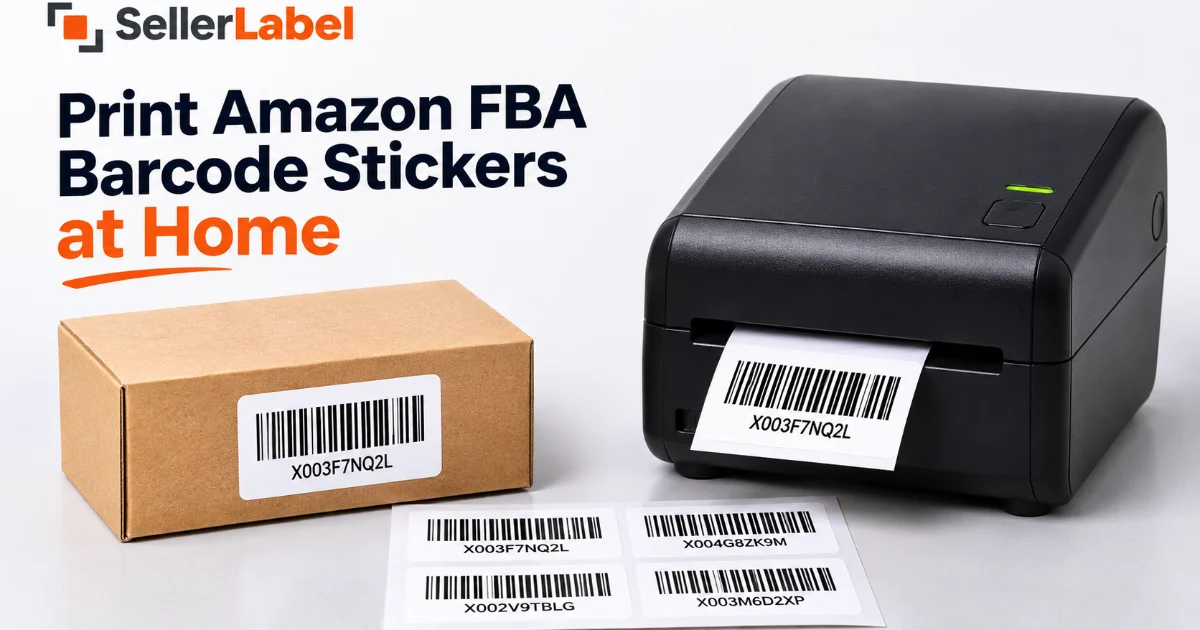
If you sell products through Amazon FBA, you may need to print barcode stickers before sending your inventory to an Amazon fulfilment centre. These stickers help identify individual products and make it easier for Amazon to scan and process your stock.
The good news is that you do not always need an expensive label printer or a professional printing service. You can print Amazon FBA barcode stickers at home using a regular inkjet or laser printer with suitable adhesive label sheets. If you have a thermal label printer, you can use compatible roll labels instead.
The important part is to use the correct barcode from Amazon Seller Central, choose a suitable label layout, and print it at the correct scale. A barcode that is stretched, blurry, or difficult to scan can create problems during inventory preparation.
In this guide, you will learn how to get your Amazon FNSKU barcode, prepare sticker labels, print them at home, choose the right label size, and check whether your labels are ready for use.
What Are Amazon FBA Barcode Stickers?
Amazon FBA barcode stickers are labels used to identify products stored and fulfilled through Amazon's fulfilment network.
For many FBA products, sellers use an FNSKU barcode. FNSKU stands for Fulfilment Network Stock Keeping Unit. It is an Amazon-specific identifier associated with a product offer and seller.
An FNSKU label generally contains:
-
A scannable barcode
-
The FNSKU printed in readable text
-
Product identification information, where included in the selected layout
The barcode helps Amazon identify the correct seller's inventory when products are received, stored, picked, and packed.
Before printing, check the barcode requirements shown in your Amazon Seller Central account. Not every product necessarily requires an FNSKU sticker. The barcode requirements can depend on the product and its listing settings.
FNSKU vs UPC vs EAN: What Is the Difference?
Before printing Amazon FBA barcode stickers, it is useful to understand the difference between common product barcodes.
| Barcode | What it identifies | Where it is used |
|---|---|---|
| FNSKU | An Amazon-specific seller inventory identifier | Amazon FBA product identification |
| UPC | A product identifier commonly used in retail | Product identification and listing |
| EAN | A product identifier used internationally | Product identification and retail |
An FNSKU is not the same as a UPC or EAN. If Amazon requires an FNSKU label for your product, do not replace it with a random barcode or a different product identifier.
Always follow the barcode requirement shown for the product in Seller Central.
How to Get Your Amazon FNSKU Barcode from Seller Central
You should obtain the official FNSKU assigned to your product before preparing its sticker.
Follow these general steps:
Step 1: Log in to Amazon Seller Central
Open Amazon Seller Central and sign in to your seller account.
Use the account where your FBA products and inventory are listed.
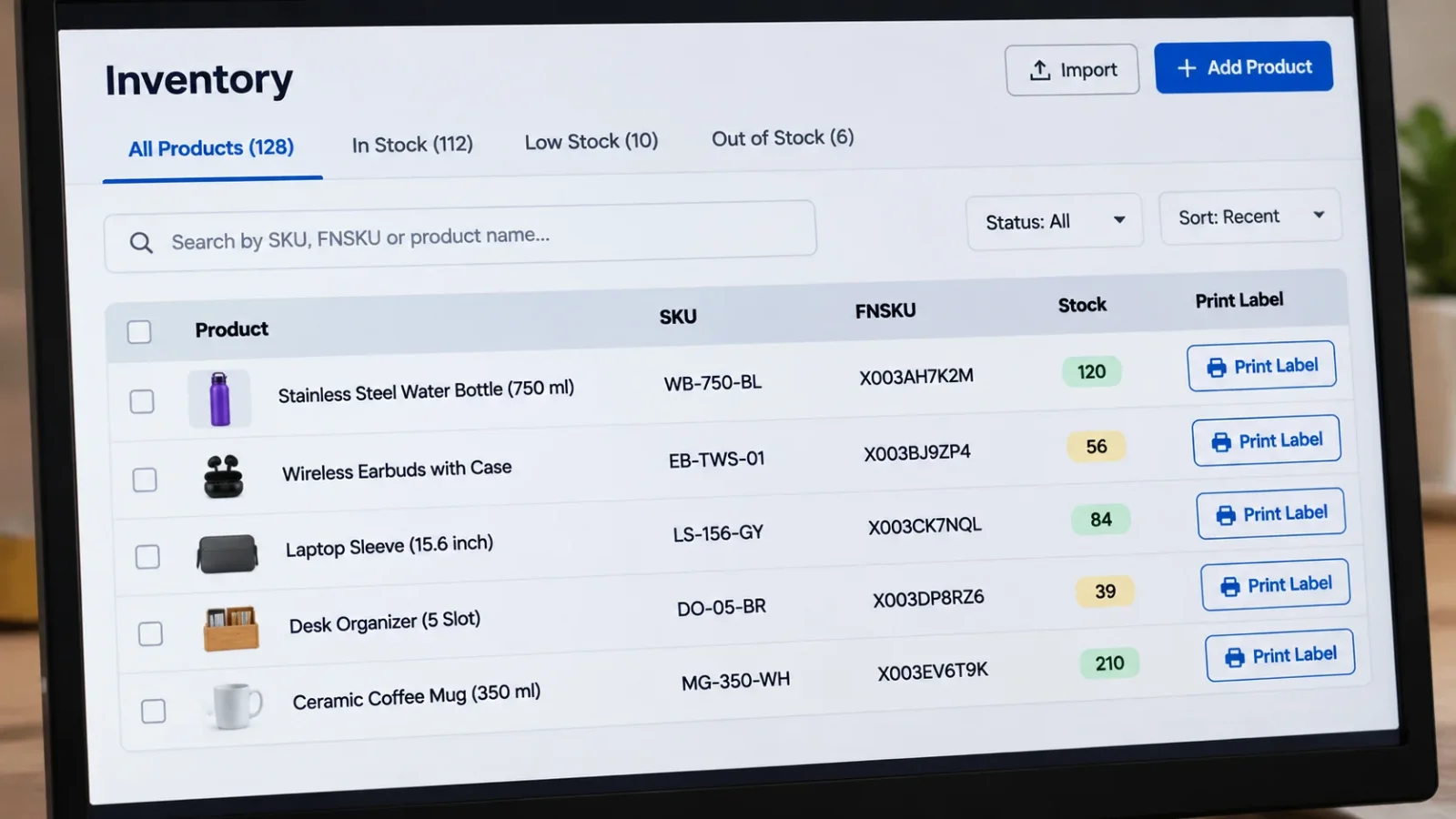
Step 2: Open Manage Inventory
Go to the inventory section and open Manage Inventory or the relevant inventory management page.
Find the product for which you need barcode stickers.
Step 3: Find the Print Item Labels Option
Open the action menu next to the relevant product or SKU.
Look for the Print Item Labels option. The exact menu placement may vary depending on the Seller Central interface and workflow.
Step 4: Select the Required Quantity and Layout
Choose how many labels you need and select an available label format.
Check the label dimensions and layout before downloading. The correct option depends on your printer and the label stock you plan to use.
Step 5: Download the Label PDF
Download the generated PDF and save it to your computer.
Keep the original Amazon-generated file unchanged. You will use it as the source for printing or preparing your labels.
Important: If you are creating a custom sticker layout, copy the official FNSKU carefully. Do not invent, modify, or randomly generate an FNSKU for an Amazon product.
How to Print Amazon FBA Barcode Stickers at Home
You can print FBA barcode stickers at home with either a regular printer or a thermal label printer.
Method 1: Print Using an Inkjet or Laser Printer
This is a practical option if you do not own a thermal printer.
You will need:
-
-
An inkjet or laser printer
-
-
Compatible adhesive label sheets
-
The FNSKU label PDF from Seller Central
-
A PDF reader on your computer
Follow these steps:
-
Open the Amazon-generated FNSKU label PDF.
-
Load compatible adhesive label sheets into your printer.
-
Check that the label layout matches your sheet.
-
Open the print settings.
-
Select Actual Size or 100% scale where appropriate.
-
Avoid Fit to Page if it changes the original label dimensions.
-
Print one test sheet first.
-
Check the barcode clarity and alignment before printing the remaining labels.
If your PDF does not fit the available sheet layout, do not force it into a different size without checking the barcode dimensions and alignment.
Method 2: Print Using a Thermal Label Printer
A thermal printer is useful for sellers who prepare FBA inventory regularly.
Unlike a standard inkjet or laser printer, a thermal printer uses heat to create the printed image on compatible thermal label stock.
You will need:
-
A compatible thermal label printer
-
Matching thermal label rolls
-
Your Amazon FNSKU barcode PDF or correctly prepared barcode labels
Follow these steps:
-
Check the label dimensions supported by your printer.
-
Load the compatible thermal roll.
-
Open the FNSKU label file.
-
Select the matching paper or label size in the print settings.
-
Check the print preview.
-
Print one sample label.
-
Scan the barcode to confirm that it is readable.
Do not assume that every thermal printer uses the same label size. Check the printer specifications and the label format selected in Seller Central.
What Size Barcode Labels Should You Use for Amazon FBA?
The correct label size depends on the format provided by Amazon, the printer, and the label stock you are using.
Some commonly used label formats include:
| Label format | Typical use |
|---|---|
| 2 × 1 inch | Individual product barcode stickers |
| 50 × 25 mm | Small thermal barcode stickers |
| 44-label A4 sheet | Multiple stickers printed on one A4 sheet |
| 30-up A4 sheet | Another common multi-label sheet layout |
| 4 × 6 inch | Common carton or shipment label format |
These are examples of label formats used by sellers and label tools, not a guarantee that every format is accepted for every product or shipment.
Before printing, confirm the size and layout required by your Amazon-generated file and current Seller Central instructions.
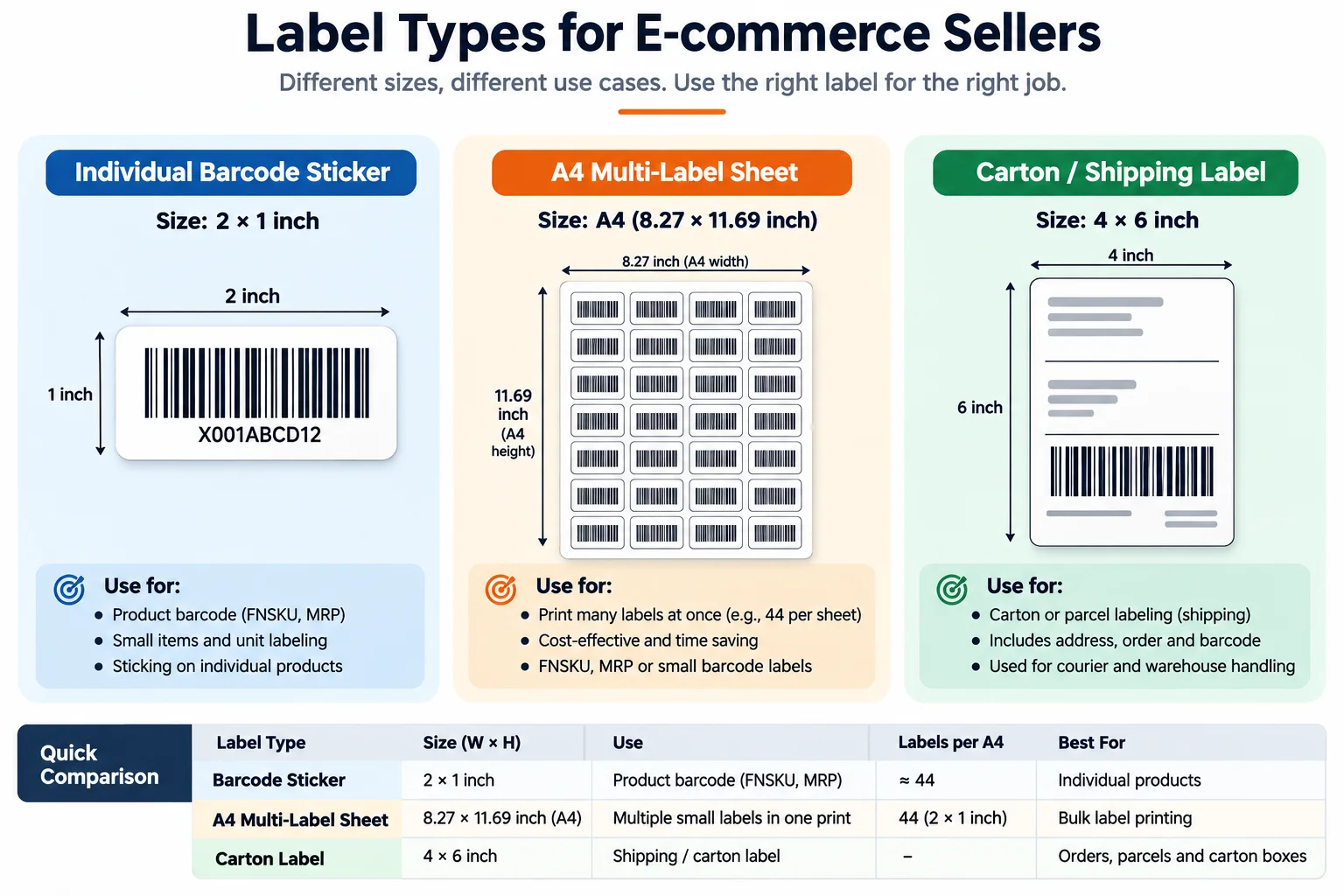
Product FNSKU Sticker vs FBA Carton Label
This difference is especially important.
| FNSKU product sticker | FBA carton label |
|---|---|
| Identifies an individual product unit | Identifies a shipment carton |
| Applied to the product packaging or unit | Applied to the outside of the shipping carton |
| Uses the product's assigned FNSKU | Uses the shipment information generated for the shipment |
| Printed according to the product label layout | Often printed using a separate carton label format |
Do not use a 4 × 6 carton label as a replacement for an individual product FNSKU sticker. They serve different purposes.
Keep the product barcode file and carton label file separate when preparing inventory.
How to Generate Amazon FBA Barcode Stickers
If you need to prepare barcode stickers in a custom layout, a barcode sticker generator can help arrange the information for printing.
SellerLabel provides an Amazon FBA Barcode Sticker Generator that you can use to prepare barcode sticker labels.
Before using any barcode generator, make sure you have the correct product identifier from Amazon Seller Central.
A typical barcode sticker preparation process involves:
-
Collect the correct FNSKU or other required barcode value.
-
Enter or import the barcode information supported by the tool.
-
Select a suitable sticker layout and dimensions.
-
Add readable text if the layout supports it.
-
Preview the generated label.
-
Print a sample and scan it before preparing the full quantity.
A barcode generator helps prepare the label design. It does not assign an official Amazon FNSKU or confirm that a product is exempt from labelling.
How to Prepare Multiple Amazon FBA Barcode Stickers in Bulk
If you are sending several products to Amazon, preparing stickers one by one can take extra time.
For bulk preparation, organise your product information before generating or printing labels.
A simple spreadsheet can include:
| SKU | FNSKU | Product name | Quantity |
|---|---|---|---|
| SKU-001 | Official FNSKU | Product A | 20 |
| SKU-002 | Official FNSKU | Product B | 15 |
| SKU-003 | Official FNSKU | Product C | 10 |
Use the exact FNSKU values from your Amazon inventory records. Do not manually guess or alter the codes.
Before printing:
-
Check that each SKU is matched with the correct FNSKU.
-
Confirm the quantity required for each product.
-
Avoid duplicate or missing entries.
-
Preview the label layout.
-
Print a small test batch first.
If you are using a tool that supports bulk entry or spreadsheet import, follow its supported input format. Do not assume every generator accepts the same file type or columns.
How to Make Sure Your Amazon Barcode Stickers Scan Correctly
Printing a barcode is not enough. It must also be clear and readable.
Use this checklist before applying the stickers to your products.
1. Check Barcode Clarity
The bars should be sharp and clearly separated. Avoid faded, broken, smudged, or blurry printing.
2. Avoid Incorrect Scaling
Print at the dimensions required by the selected label format. Unnecessary resizing can distort the barcode.
3. Use Suitable Label Material
Choose adhesive labels that stay attached to the product packaging during handling and transportation.
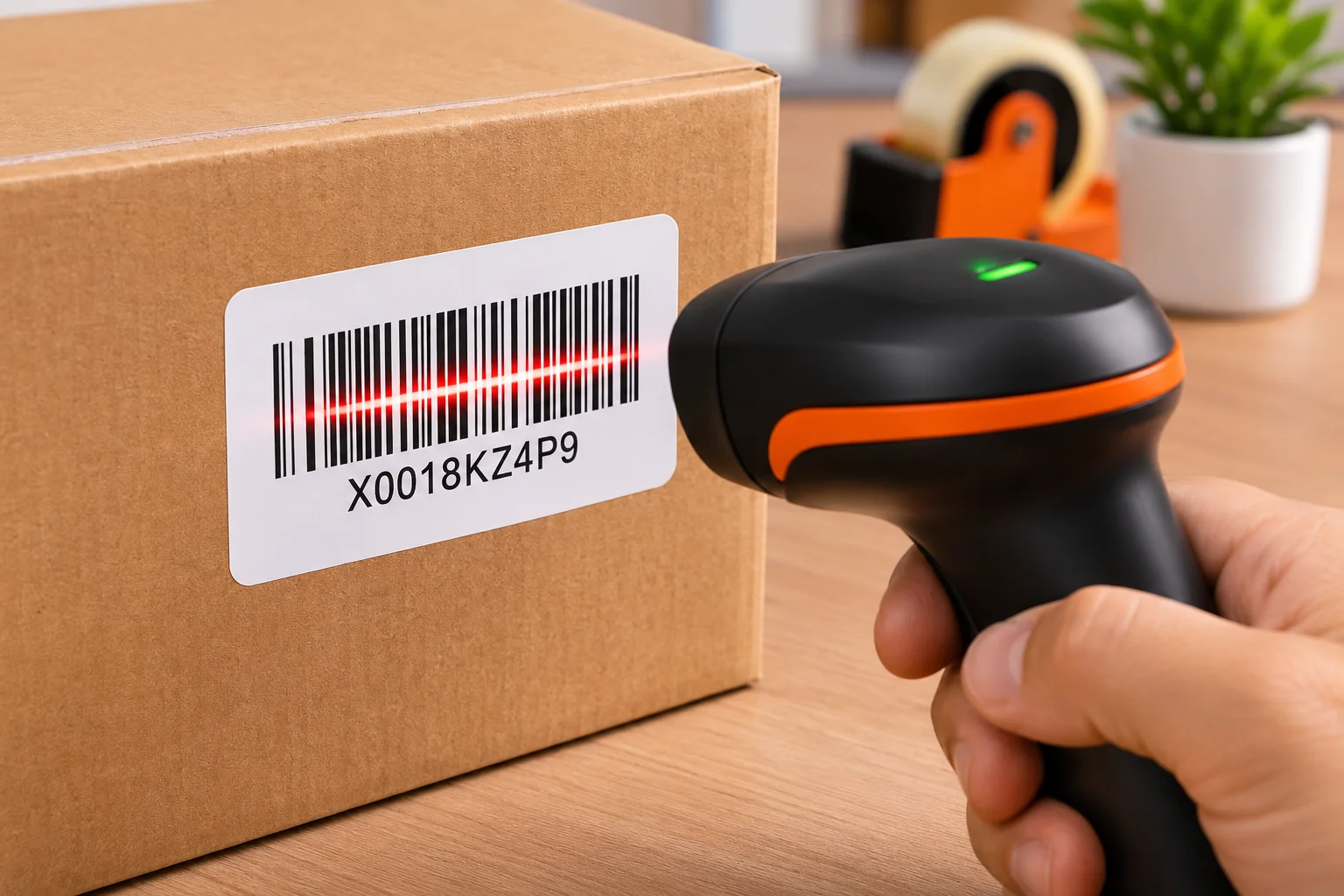
4. Scan a Test Label
Use a barcode scanner to check a sample before printing a large batch. A phone camera may help with a basic check, but a suitable barcode scanner is preferable for a proper operational test.
5. Cover Conflicting Barcodes Where Required
Follow Amazon's current preparation instructions about existing manufacturer barcodes. Where an FNSKU label is required to identify the unit, make sure other scannable barcodes do not cause confusion.
6. Apply the Sticker Properly
Place the label on a flat, visible area of the product packaging. Avoid folds, seams, curved surfaces, or areas where the barcode could become damaged.
Common Mistakes to Avoid When Printing FBA Labels at Home
Even a small printing mistake can create problems during inventory preparation.
Avoid these common issues:
-
Using the wrong barcode: Do not use a UPC or EAN when an FNSKU is required.
-
Printing at the wrong size: Check the label dimensions before printing.
-
Selecting Fit to Page without checking: This can change the barcode layout or dimensions.
-
Using low-quality printing: Faded or broken barcode lines may be difficult to scan.
-
Mixing product and carton labels: Keep individual product stickers separate from shipment carton labels.
-
Printing the wrong quantity: Match the number of stickers with the inventory you are preparing.
-
Reusing an incorrect FNSKU: Check the code against the correct product and seller inventory record.
-
Skipping the test print: Always inspect and scan a sample before printing a complete batch.
Frequently Asked Questions
1. Can I print Amazon FBA barcode stickers at home?
Yes. You can print them using a regular inkjet or laser printer with compatible adhesive label sheets, or a thermal printer with matching label rolls. Follow the label format provided in Seller Central.
2. How do I get an FNSKU barcode for my Amazon product?
Log in to Amazon Seller Central, find the relevant product in your inventory, and use the available Print Item Labels option or the relevant FBA workflow to obtain the assigned barcode label.
3. Can I generate Amazon FNSKU labels for free?
You can prepare and print labels using available free tools and your own printer. However, the official FNSKU must come from Amazon. Check the tool's available features and any usage limits before starting.
4. What size labels are used for Amazon FBA barcodes?
Common formats include 2 × 1 inch and 50 × 25 mm thermal stickers, as well as multi-label A4 sheets. Always check the actual format required by your Amazon-generated label file and current instructions.
5. Can I print FNSKU labels on a normal A4 printer?
Yes. You can use compatible adhesive A4 label sheets. Make sure the label layout matches the sheet and that the printer does not resize the barcode incorrectly.
6. Can I use a thermal printer for Amazon FBA stickers?
Yes. A thermal printer can print FNSKU stickers when you use compatible label rolls and the correct print dimensions.
7. Is an FNSKU the same as a UPC or EAN?
No. An FNSKU is an Amazon-specific identifier, while UPC and EAN are product identifiers used more broadly in retail.
8. Is an Amazon FBA product sticker the same as a 4 × 6 shipping label?
No. An FNSKU sticker identifies an individual product unit. A carton or shipment label identifies a shipping carton. They should be prepared and printed separately.
9. Can I print multiple FNSKU labels at once?
Yes, depending on the available Seller Central workflow or the label tool you use. Organise the correct FNSKU values and quantities before preparing a bulk print job.
10. Do I need to cover the original product barcode?
Follow the current Amazon preparation instructions for your product. If an FNSKU label is required, make sure the correct barcode is visible and other scannable barcodes do not interfere with identification.
11. Why is my Amazon FBA barcode not scanning?
Possible reasons include poor print quality, incorrect scaling, damaged labels, unsuitable label material, or an incorrect barcode value. Print a fresh sample at the correct dimensions and test it with a barcode scanner.
12. Can a barcode generator create my official Amazon FNSKU?
A barcode generator can help format a barcode label, but it does not assign an official FNSKU to your product. Get the correct identifier from Amazon Seller Central.
Final Thoughts
Printing Amazon FBA barcode stickers at home can save time and make inventory preparation easier. You can use a regular printer with adhesive A4 sheets or a thermal printer with compatible label rolls.
The most important step is to start with the correct FNSKU from Amazon Seller Central. Then select a suitable label size, print at the correct scale, and check that the barcode scans before applying the stickers.
Also, keep individual product FNSKU labels separate from FBA carton labels. They have different purposes and should not be mixed.
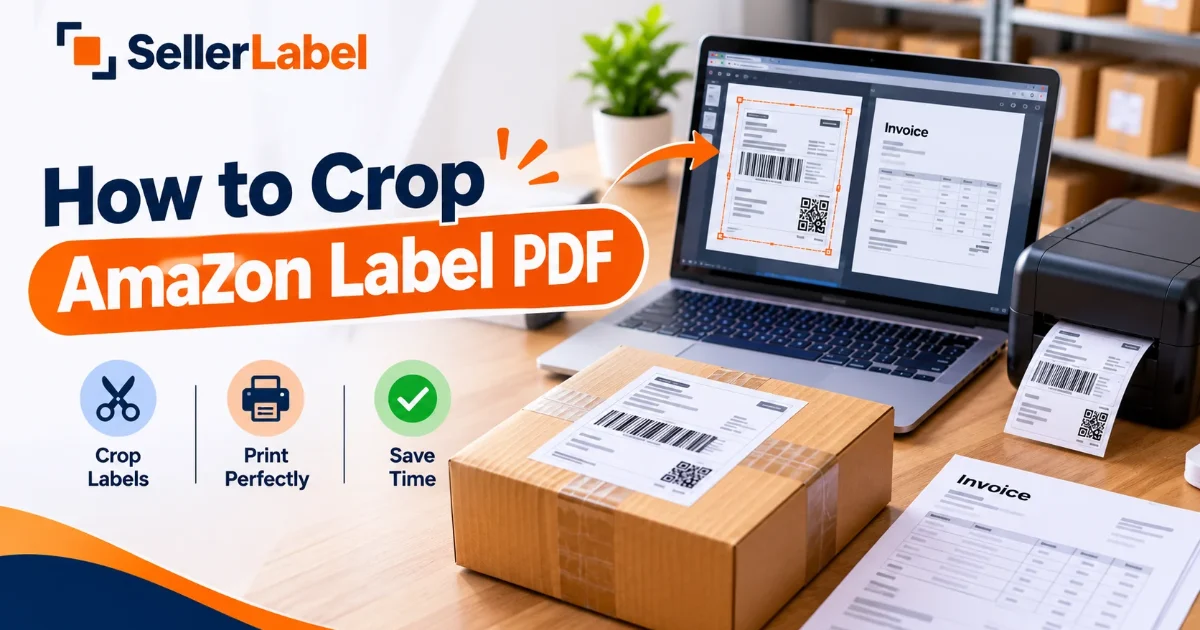
If you regularly prepare Amazon inventory, try the SellerLabel Amazon FBA Barcode Sticker Generator to prepare your barcode sticker layouts. You can also use the Amazon Label Crop Tool when you need to crop or adjust an Amazon shipping-label PDF for printing.
Prepare your labels carefully, check every barcode, and follow the latest instructions in Seller Central before sending your inventory to Amazon.
No comments yet. Be the first to share your thoughts.