
 Meesho
 Flipkart
 Amazon
 Myntra
 JioMart
 Snapdeal
 GlowRoad
 Limeroad
 Shop101
 Shopdeck
 Citymall
 Ajio
 Other courier PDF
 PDF to Word
 PDF to Excel
 Edit PDF
 Merge PDF
 Split PDF
 Crop PDF
 Remove pages
 Extract pages
 Reorder pages
 Rotate PDF
 Page numbers
 Watermark PDF
 JPG to PDF
 PDF to JPG
 Compress PDF
 Unlock PDF
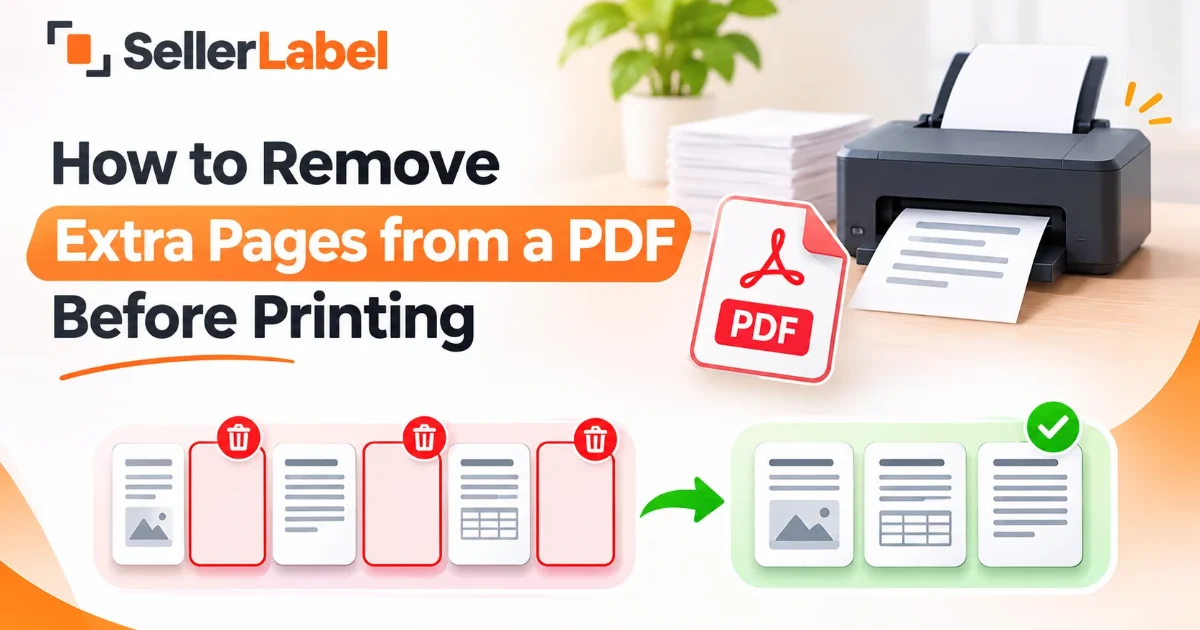
Have you ever opened a PDF for printing and found extra blank pages, unwanted instructions, duplicate sheets, or pages you do not need?
Printing the entire file can waste paper, ink, and time. The good news is that you do not need complicated software to fix this. You can remove unwanted pages from a PDF online or save a new PDF containing only the pages you want to print.
In this guide, you will learn how to delete extra PDF pages, remove blank pages, and use the Print to PDF method when you only need selected pages.
Why Remove Extra Pages from a PDF?
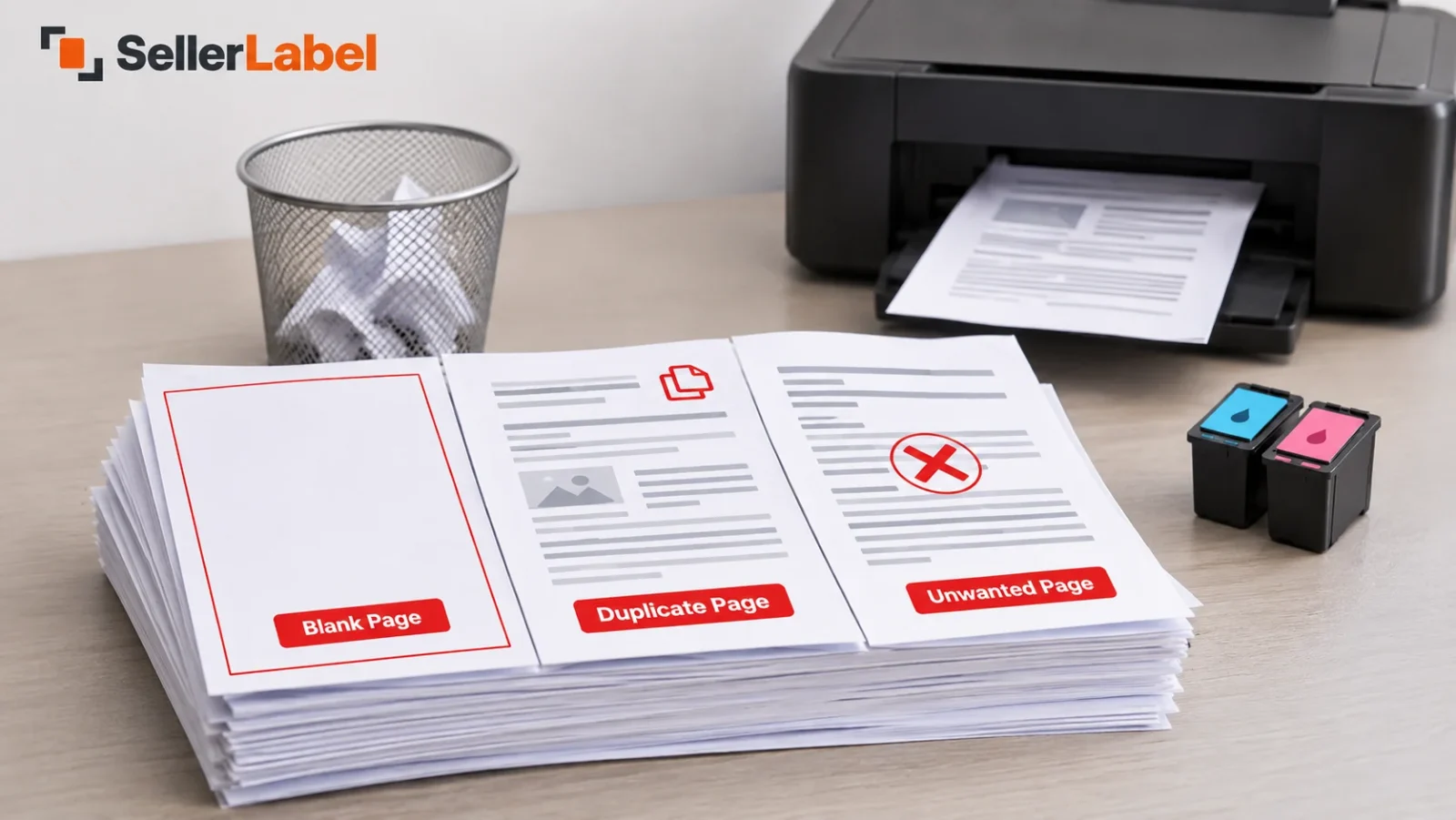
PDF files do not always contain only the pages you need. Extra pages can appear when documents are scanned, downloaded, combined, or exported from another application.
Here are some common examples:
-
Blank pages: Empty pages added during scanning or document conversion.
-
Duplicate pages: The same invoice, report, or document page appears more than once.
-
Unwanted instructions: Extra information that is not needed in the final print.
-
Old or outdated pages: Previous versions of a document that should not be included.
-
Extra sheets: Unnecessary pages at the beginning or end of a PDF.
Removing these pages before printing helps keep your document organised and avoids unnecessary printing.
Method 1: Remove Extra Pages from a PDF Online
If you want to permanently remove unwanted pages from your PDF, using an online PDF page remover is a simple option.
You can use the free SellerLabel Delete PDF Pages tool to work with your PDF without installing desktop software.
Follow these steps:
Step 1: Open the PDF Page Remover
Visit the SellerLabel Delete PDF Pages tool in your browser.
Open the tool on your computer or mobile device.
Step 2: Upload Your PDF File
Select the PDF file from your device. Wait for the document to open in the editor.
Before deleting anything, check the page previews so you can identify which pages you want to remove.
Step 3: Select the Unwanted Pages
Look through the PDF page thumbnails and identify the pages you do not need.
These may include:
-
Blank pages
-
Duplicate invoices
-
Extra instruction pages
-
Unwanted document sections
-
Old or irrelevant information
Select the pages you want to delete. Double-check your selection before continuing.
Step 4: Delete the Selected Pages
Use the delete option to remove the selected pages from your document.
Check the remaining pages to make sure the important information is still there and the page order is correct.
Step 5: Download the Updated PDF
Save or download your updated PDF file.
Open the new document and quickly review it before sending it for printing.
Tip: Keep a copy of your original PDF until you have checked the edited file. This makes it easier to recover any page you accidentally removed.
Method 2: Remove Extra Pages Using Print to PDF
If you do not want to edit the original PDF directly, you can use your browser's print settings to create a new PDF containing only the pages you need.
This method is useful when you know the exact page numbers you want to keep.
Step 1: Open Your PDF in Chrome or Microsoft Edge
Find your PDF file and open it in Google Chrome or Microsoft Edge.
Step 2: Open the Print Menu
Press Ctrl + P on Windows or Cmd + P on Mac.
The print settings window will appear.
Step 3: Select Save as PDF
Under the Destination or Printer option, choose Save as PDF or Microsoft Print to PDF, depending on your browser and operating system.
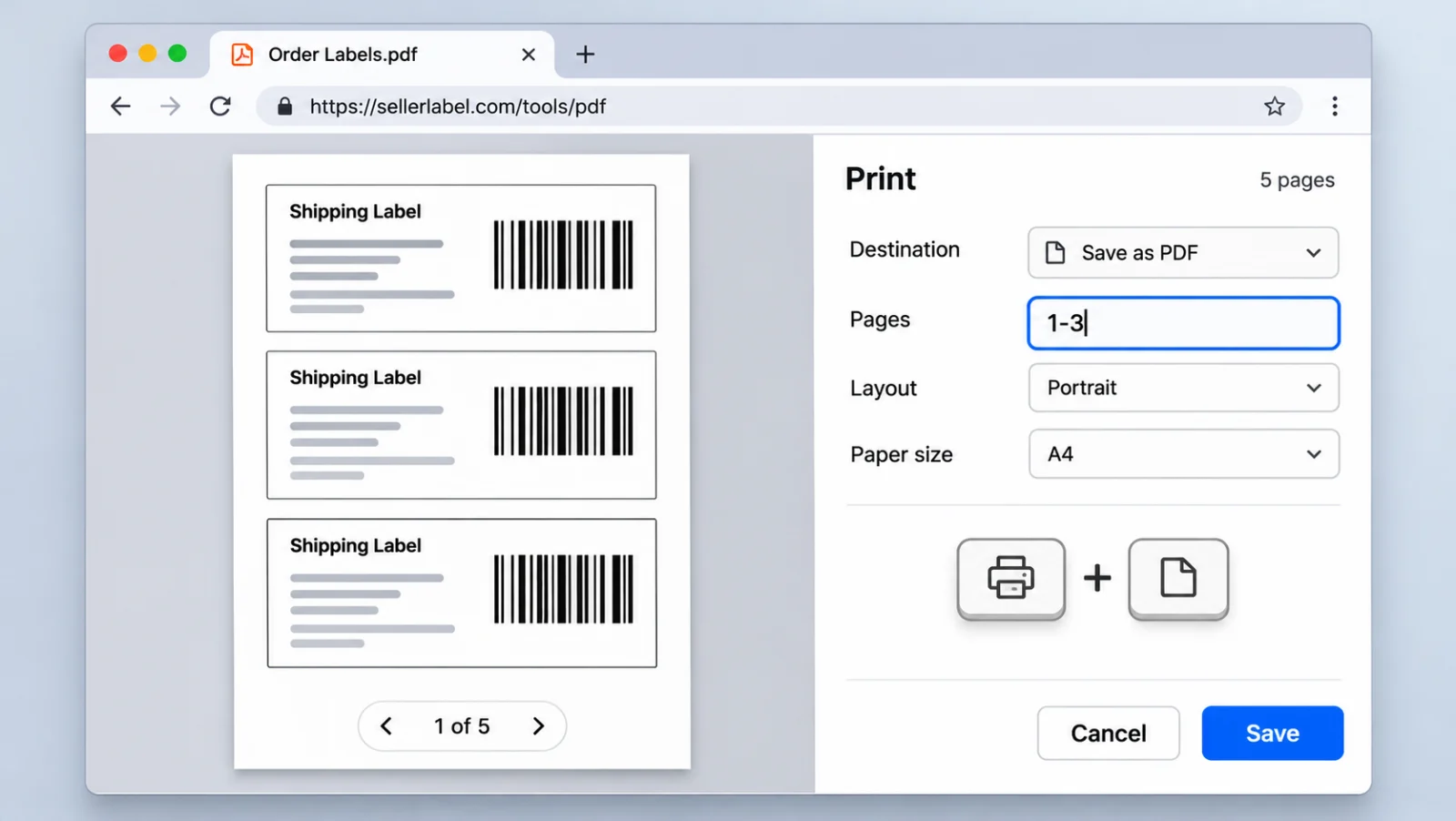
Step 4: Enter the Page Numbers You Want to Keep
Find the Pages option and select Custom.
For example, imagine your PDF contains 10 pages, but you want to remove page 3.
Enter:
1-2, 4-10
This tells the print dialog to include pages 1 and 2, followed by pages 4 through 10.
Step 5: Save the New PDF
Click Save or Print, depending on the selected destination, and choose where to save the new file.
Your new PDF will contain only the selected pages.
Important: Print to PDF creates a new PDF from the selected pages. It does not directly delete pages from your original file. Depending on the document and print settings, some features such as links, forms, bookmarks, or digital signatures may not be preserved.
How to Remove Blank Pages from a PDF
Blank pages are one of the most common reasons people need to clean up a PDF before printing.
They may appear after scanning a document, combining multiple files, or exporting a report.
Here is how to remove them:
-
Open your PDF in a page-removal tool.
-
Check the page previews one by one.
-
Identify the completely blank pages.
-
Select the unwanted pages.
-
Delete them and save the updated PDF.
-
Open the new file to confirm that no important content is missing.
Do not remove a page just because it looks mostly empty. Some forms and invoices contain small details, signatures, or important information that may be easy to miss.
How to Remove the First or Last Page from a PDF
Sometimes you only need to remove the cover page, an extra instruction sheet, or an unwanted final page.
You can do this without changing the rest of the document.
To remove the first page:
-
Open your PDF in the page-removal tool.
-
Find the first page in the preview.
-
Select it and use the delete option.
-
Save the updated PDF.
To remove the last page:
-
Open the document and go to the final page thumbnail.
-
Check that it does not contain important information.
-
Select the page and delete it.
-
Save and review the updated file.
The same process can be used to remove a specific page from the middle of a PDF.
How to Remove Multiple Pages from a PDF at Once
If your PDF contains several unwanted pages, removing them individually can take extra time.
For example, you may have a 30-page document and want to remove pages 4, 8, 12, and 20.
A page-removal editor can help you identify the unwanted pages through their thumbnails. Select the pages you want to remove and use the delete option.
Before saving, check the remaining pages carefully. Make sure the document still follows the correct order and no useful information has been removed.
Tips to Check Before Printing Your PDF
After removing unwanted pages, take a moment to review your document.
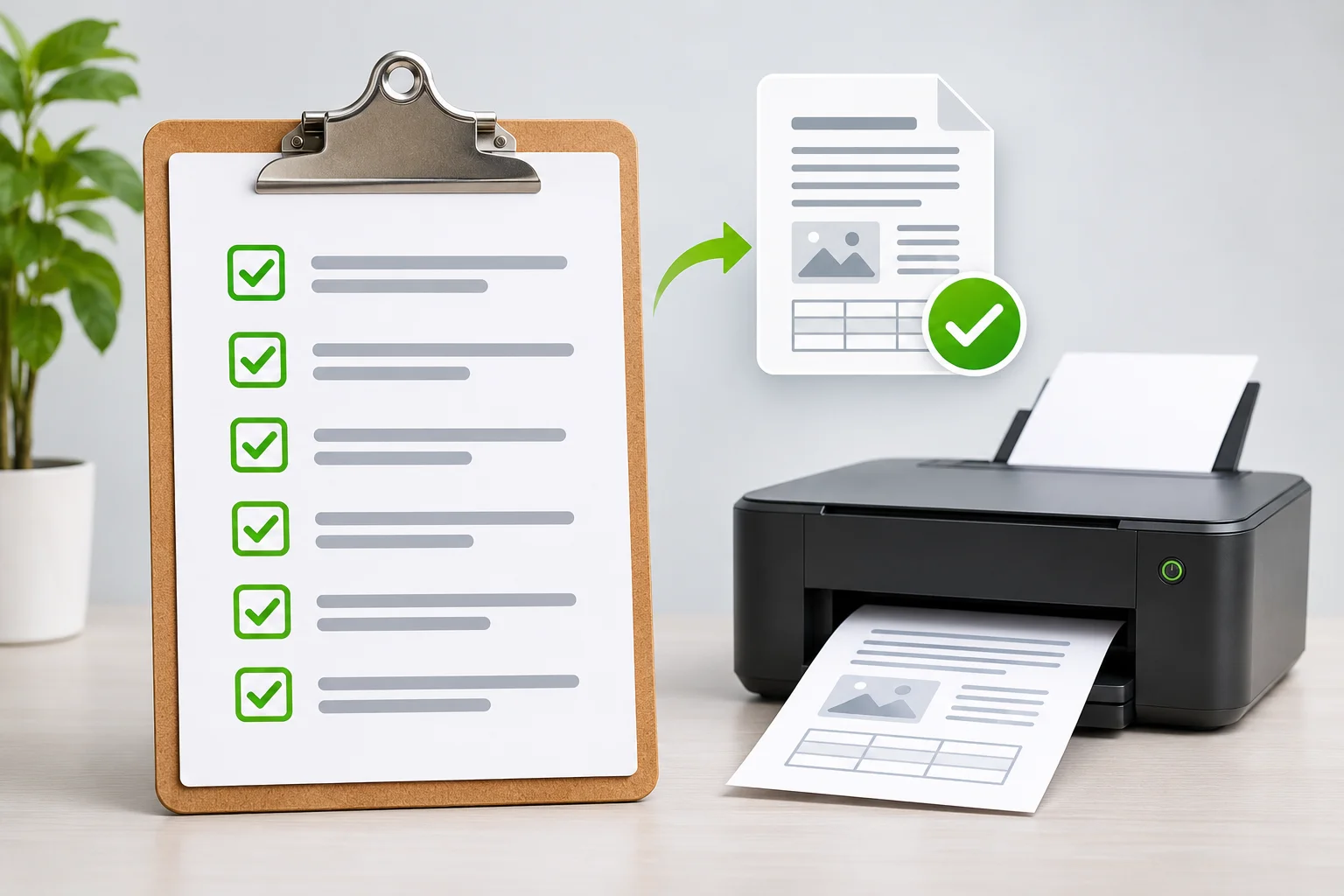
Use this quick checklist:
-
Check page order: Make sure the remaining pages are in the correct sequence.
-
Check blank pages: Confirm that no unnecessary empty pages remain.
-
Review important details: Check invoices, tables, signatures, and other important information.
-
Check the page count: Make sure the final PDF has the expected number of pages.
-
Preview the print layout: Check page size, orientation, and margins before printing.
-
Print one test copy: If the document is important or lengthy, print a sample page first.
If you are preparing multiple PDF documents for printing, you may also find the SellerLabel Merge PDF tool useful for combining files into one document. If you need to separate pages into different PDF files instead, use the Split PDF tool.
Common Problems When Deleting PDF Pages
1. The Wrong Page Was Deleted
This usually happens when page thumbnails are small or two pages look similar.
Solution: Review the page previews before deleting anything. Keep your original PDF as a backup.
2. The PDF Is Still Showing Blank Pages
Sometimes a page looks blank at first but contains a small amount of text or an image.
Solution: Zoom in and inspect the page before removing it.
3. The Downloaded PDF Has the Wrong Page Order
This can happen if you accidentally select the wrong pages or use an incorrect page range.
Solution: Open the downloaded PDF and check the page sequence before printing.
4. The New PDF Looks Different
When you use Print to PDF, the document is recreated through the print process. Some interactive features or document properties may not carry over.
Solution: If you need to preserve the original PDF structure and features, use a page-removal editor instead of the print workaround.
Frequently Asked Questions
1. How do I remove extra pages from a PDF before printing?
Open your PDF in an online PDF page-removal tool, select the unwanted pages, delete them, and download the updated file. You can also use Print to PDF to save only the page numbers you need.
2. How can I delete pages from a PDF for free?
You can use an online PDF page-removal tool such as SellerLabel Delete PDF Pages. Open the tool, select your PDF, choose the unwanted pages, and save the updated document.
3. How do I remove blank pages from a PDF?
Open the PDF in a page-removal editor, check the page thumbnails, select the blank pages, and delete them. Review the final file to make sure no important information is missing.
4. Can I remove a single page from a PDF?
Yes. Open the PDF in a page-removal tool, select the specific page you want to remove, and save the updated document.
5. How do I remove multiple pages from a PDF?
Select all the unwanted page thumbnails in your PDF editor and use the delete option. Check the remaining pages before downloading the file.
6. Can I remove the first or last page from a PDF?
Yes. Select the first or last page in the page preview and delete it. You can also remove a specific page from the middle of the document.
7. How do I remove pages from a PDF without installing software?
Use an online PDF page-removal tool in your web browser. You can open the tool, select your file, remove unwanted pages, and download the updated PDF without installing a desktop application.
8. Is Print to PDF the same as deleting PDF pages?
No. Deleting pages removes them from the edited PDF. Print to PDF creates a new file containing only the pages you select. Your original PDF remains unchanged.
9. Can I remove PDF pages on my mobile phone?
Yes. You can use a browser-based PDF page-removal tool on a mobile phone. Open the tool in your browser, select the PDF from your device, and follow the page-selection steps.
10. Will removing PDF pages reduce the file size?
It can reduce the file size because the deleted pages are no longer part of the updated document. The actual reduction depends on how much content those pages contain.
11. Can I recover a page after deleting it?
If you have not saved the changes, you may be able to undo the deletion in the editor. Otherwise, use your original PDF backup to recover the missing page.
12. Will deleting PDF pages affect the quality of the remaining pages?
Deleting pages does not normally require changing the content of the remaining pages. However, always review the downloaded file to confirm that its text, images, and layout look correct.
Final Thoughts
Extra pages in a PDF can waste paper and make documents harder to manage. Whether you want to remove blank pages, delete an unwanted invoice, or clean up a long document, the process is simple.
If you only need to print selected pages, the Print to PDF method can do the job. But if you want to remove unwanted pages from the actual document, use a PDF page-removal tool.
Try the SellerLabel Delete PDF Pages tool to clean up your PDF before printing. Review the final file, save a copy, and print only what you need.
No comments yet. Be the first to share your thoughts.