
 Meesho
 Flipkart
 Amazon
 Myntra
 JioMart
 Snapdeal
 GlowRoad
 Limeroad
 Shop101
 Shopdeck
 Citymall
 Ajio
 Other courier PDF
 PDF to Word
 PDF to Excel
 Edit PDF
 Merge PDF
 Split PDF
 Crop PDF
 Remove pages
 Extract pages
 Reorder pages
 Rotate PDF
 Page numbers
 Watermark PDF
 JPG to PDF
 PDF to JPG
 Compress PDF
 Unlock PDF
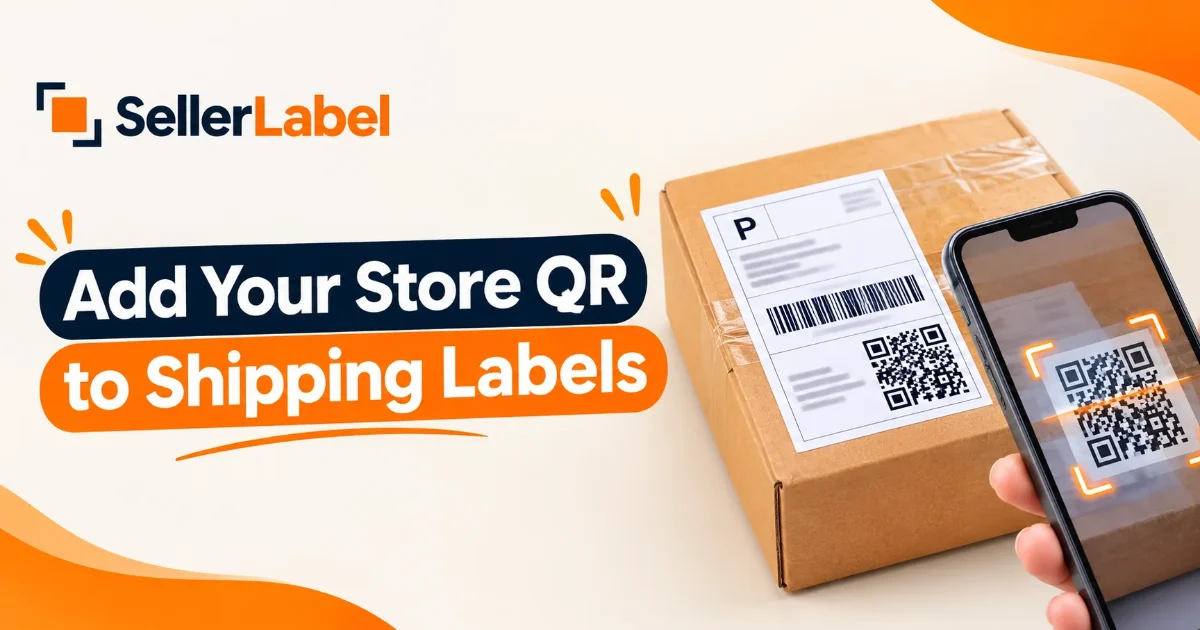
Getting an order on an e-commerce marketplace is only the first step. As a seller, you also want customers to remember your store and consider buying from you again.
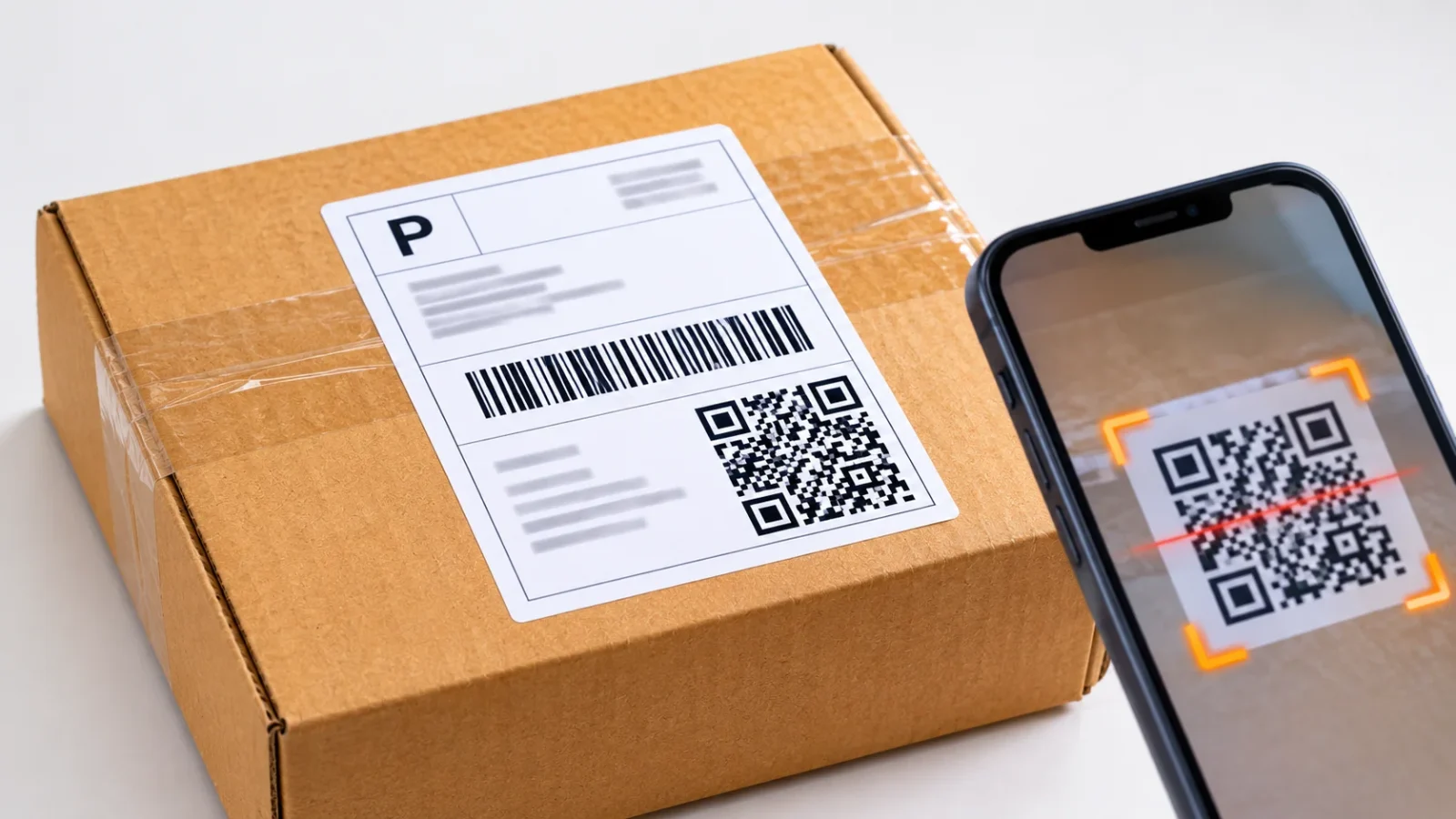
One simple way to make it easier for customers to find your store is by adding a QR code to your shipping labels or packaging. When a customer scans the code with a smartphone, it can open a relevant store page, product catalogue, or other useful destination.
Instead of asking customers to search for your store manually, a QR code gives them a quick way to reach the page you want to share.
For sellers who process multiple orders every day, adding a QR code to shipping labels can also be more convenient than printing and attaching separate QR stickers to every parcel.
In this guide, you'll learn what a store QR code is, how it can support repeat orders, how to add one to shipping labels, and what to check before printing labels in bulk.
What Is a Store QR Code on a Shipping Label?
A store QR code is a scannable square code that directs customers to a specific online destination when they scan it using their smartphone.
For e-commerce sellers, the destination could be:
-
Your online store homepage
-
Your marketplace store page
-
A product catalogue
-
A specific product page
-
A permitted repeat-order or promotional page
When you add this QR code to a shipping label, customers can scan it after receiving their parcel and visit the linked page.
For example, a Meesho seller may use a QR code that opens their Meesho store page. A seller with an independent online store may use a QR code that opens their website.
The important thing is to choose a relevant destination that customers can open easily on their phones.
Why Add a Store QR Code to Shipping Labels?
A shipping label is mainly used for delivery and parcel identification. However, when your marketplace and fulfilment rules allow it, a QR code can also provide customers with a convenient way to discover more about your store.
Here are some possible benefits.
1. Make Your Store Easier to Find
Customers may not remember your store name after receiving an order. A QR code gives them a direct way to visit the linked store page without typing its name or searching manually.
2. Encourage Repeat Purchases
If customers are happy with their first purchase, they may want to explore other products from the same seller.
A QR code can make it easier to return to your store or find a relevant product again. It does not guarantee repeat orders, but it can reduce the effort involved in finding your store.
3. Promote More Products
Instead of linking only to your homepage, you can use a relevant product catalogue or collection page where permitted.
For example, if a customer purchases a kitchen product, a suitable destination could show other kitchen items available in your store.
4. Save Time During Packing
Printing a separate QR sticker for every parcel takes additional time and effort.
If your label preparation workflow supports QR code placement, you can add the code while preparing shipping labels and print it along with the label.
5. Create a Better Post-Purchase Experience
A clearly placed QR code with a short explanation can help customers understand what they will find after scanning it.
For example, a simple instruction such as "Scan to visit our store" is more useful than displaying a QR code without explaining its purpose.
How to Add a Store QR Code to Shipping Labels
The process depends on your selling platform and the tool you use to prepare shipping labels.
If you process Meesho orders, SellerLabel provides a dedicated Meesho Label Crop Tool for preparing shipping labels. You can also explore the SellerLabel Store QR tool for adding a store QR code to your workflow.
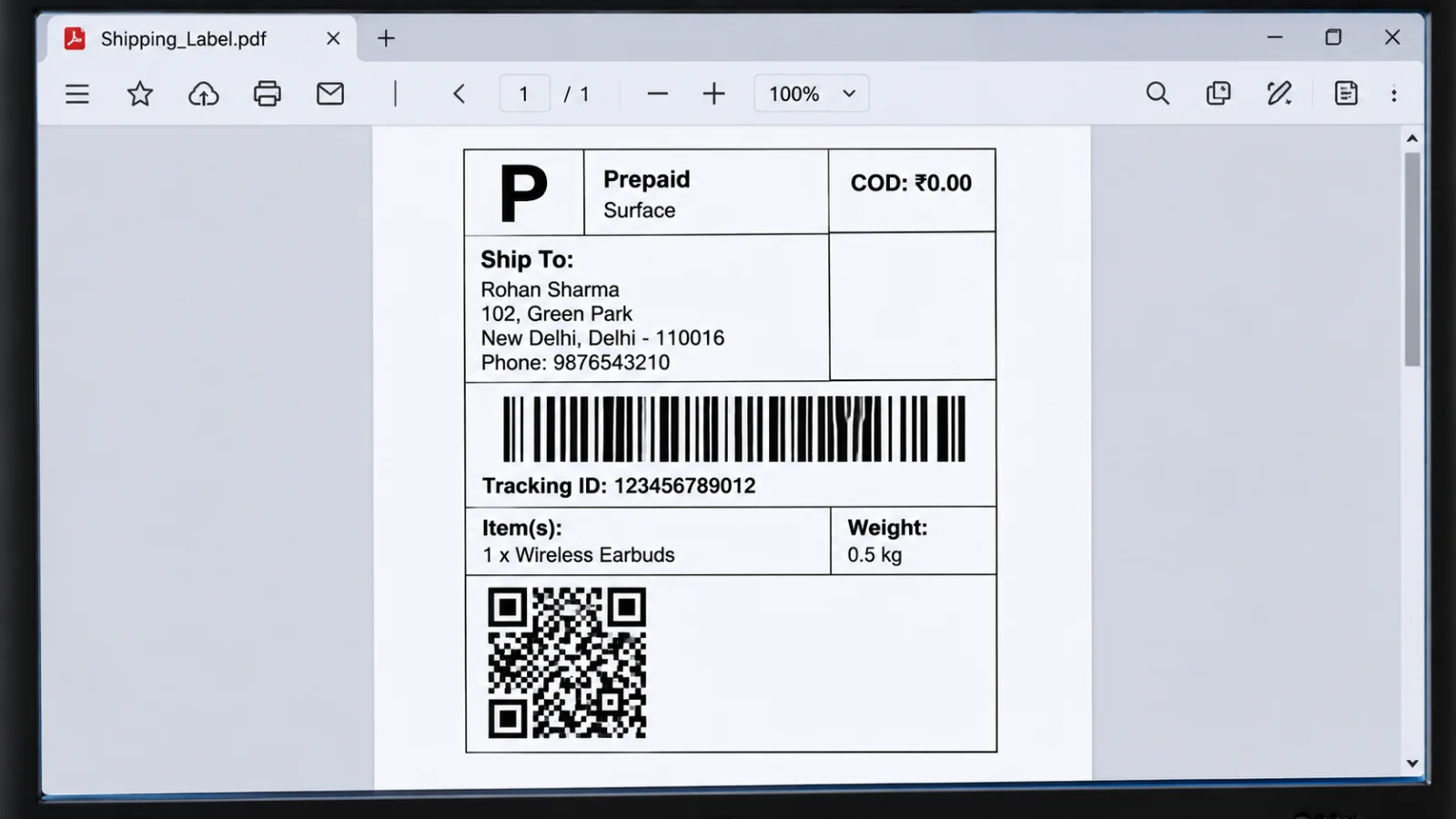
A general process looks like this:
Step 1: Copy Your Store URL
First, decide which page you want customers to visit.
This could be your marketplace store page or your own online store, depending on your business and the platform's rules.
Copy the complete URL and check that it opens correctly in a mobile browser.
Step 2: Generate Your Store QR Code
Open a QR code generator and enter your store URL.
The generator converts the link into a scannable QR code.
Before using the code, check that:
-
The URL is correct.
-
The destination opens on a mobile phone.
-
The page is publicly accessible to the intended customer.
-
The QR code is clear and not distorted.
You can use SellerLabel's Store QR tool to prepare a store QR code.
Step 3: Prepare Your Shipping Label PDF
Download the shipping label PDF from your seller panel.
If you receive multiple shipping labels in one PDF, prepare the document using a suitable label-processing workflow.
For Meesho orders, you can use the SellerLabel Meesho Label Crop Tool to prepare shipping labels for printing.
Step 4: Add the QR Code to the Label
Use a label workflow that supports placing a QR code on the shipping label.
If the tool provides a store QR option, enter your store URL and enable the feature before processing the PDF.
Check the preview carefully to confirm that the QR code is placed in a suitable area and does not cover important shipping information.
If your tool does not support direct QR placement, you may need to prepare the QR code separately and use a compatible label-design or PDF-editing workflow.
Step 5: Preview the Final Label
Before downloading or printing the complete file, inspect the processed label.
Check that:
-
The shipping barcode is fully visible.
-
The QR code does not cover the recipient address.
-
Important order and courier information remains readable.
-
The QR code is not cut off.
-
The code has enough clear space around it.
Step 6: Print and Test
Print one sample label before processing a large batch.
Scan the QR code using a smartphone camera and check that it opens the correct store page.
Also inspect the shipping barcode to make sure it remains clear and scannable.
Once everything looks correct, you can prepare the remaining labels.
What Should You Link to Your Store QR Code?
The destination of your QR code matters. A code that opens an irrelevant or broken page will not help customers.
Here are some common options:
| QR code destination | Why you might use it |
|---|---|
| Store homepage | Helps customers explore your full store |
| Product catalogue | Makes it easier to browse available products |
| Specific product page | Directs customers to a particular item |
| Repeat-order page | Helps existing customers find a product again |
| Promotional page | Shares an offer or campaign, where permitted |
Choose the destination according to the customer and the product they purchased.
For example, a seller with many product categories may prefer a catalogue page, while a seller with a small range of frequently purchased products may choose a relevant product page.
Best Practices for Store QR Codes on Shipping Labels
A QR code is useful only when customers can scan it easily. Follow these practices before printing your labels.
1. Keep the QR Code Large Enough
A very small QR code may be difficult to scan, especially when printed on a compact thermal label.
A size of around 2 × 2 cm can be a useful starting point for testing, but the required size depends on the code's complexity, print quality, and scanning conditions.
Always test the actual printed label rather than relying only on the screen preview.
2. Use Strong Contrast
A black QR code on a white background is generally easy to scan.
Avoid low-contrast colours, busy backgrounds, gradients, or designs that make the individual QR modules difficult to distinguish.
3. Leave Clear Space Around the Code
Do not place text, borders, or other graphics too close to the QR code.
Keep the surrounding area clear so smartphone cameras can detect the code properly.
4. Add a Short Call to Action
Customers may not know why a QR code is printed on their parcel.
Add a short instruction where space and marketplace rules allow, such as:
-
Scan to visit our store
-
Scan to explore more products
-
Scan to view our catalogue
Make sure the message accurately describes the destination.
5. Test on Different Phones
Test the printed QR code using more than one smartphone if possible.
Check that it scans quickly and opens the correct destination without requiring customers to download an unfamiliar app.
6. Do Not Cover Shipping Information
The QR code should never cover the shipping barcode, order number, customer address, courier details, or other required label information.
Keep it in a separate area of the label where it can be scanned without interfering with delivery operations.
7. Follow Marketplace Rules
Before adding promotional QR codes to marketplace shipping labels or parcels, check the marketplace's latest seller, packaging, and customer communication policies.
Do not use a QR code to redirect customers away from a marketplace in a way that violates its rules. A QR code should provide a permitted and relevant destination.
Store QR Code on Shipping Labels vs Separate QR Stickers
Sellers can share QR codes in more than one way. The right option depends on their packaging process and printing setup.
| Method | How it works | Best suited for |
|---|---|---|
| QR code on shipping label | QR code is printed as part of the shipping label | Sellers whose label workflow supports QR placement |
| Separate QR sticker | A separately printed sticker is attached to the parcel | Sellers who prefer separate packaging labels |
| QR code on packaging insert | A printed card or insert is placed inside the parcel | Sellers whose marketplace policies permit this approach |
Adding a QR code directly to a shipping label can save an extra sticker-printing step. However, separate stickers or inserts may offer more space for branding and instructions.
Whichever method you choose, make sure the QR code is clear, accurate, and permitted by the platform you sell on.
Common Mistakes to Avoid
Here are some mistakes that can make store QR codes less useful.
-
Using the wrong store URL: A typing mistake can send customers to an incorrect page.
-
Printing a very small QR code: Customers may struggle to scan it.
-
Using poor contrast: Light colours or busy backgrounds can affect scanning.
-
Covering the shipping barcode: This can interfere with parcel processing.
-
Skipping the test print: Always scan a printed sample before preparing a large batch.
-
Using a broken destination: Check that the linked page is accessible on mobile.
-
Adding too much text: Keep the QR code area simple and easy to understand.
-
Ignoring marketplace policies: Check whether the destination and promotional message are allowed.
Frequently Asked Questions
1. What is a store QR code on a shipping label?
It is a QR code printed on a shipping label that directs customers to a store page, product catalogue, or another relevant online destination when scanned.
2. Can I add a QR code to my Meesho shipping labels?
You can use a compatible label-processing workflow to prepare Meesho labels with a QR code, provided the feature and its use comply with Meesho's current policies. SellerLabel provides a Meesho Label Crop Tool and a separate Store QR tool.
3. How can a QR code help get repeat orders?
A QR code can make it easier for customers to revisit your store or find products again. It may support repeat purchases by reducing the effort required to locate your store, but it cannot guarantee additional orders.
4. What URL should I use in my store QR code?
You can use a permitted store homepage, product catalogue, product page, or repeat-order page. Choose a destination that is relevant to the customer and works properly on mobile.
5. What is the recommended size for a QR code on a shipping label?
Around 2 × 2 cm is a useful starting point for testing. The ideal size depends on the code's complexity, printer quality, and label space. Always scan a printed sample before bulk printing.
6. Can I add a QR code to every shipping label in a bulk PDF?
This depends on the label-processing tool. Some workflows support adding the same store QR code to multiple labels in one PDF. Check the tool's available features before processing your file.
7. Can I use a thermal printer to print QR codes?
Yes. A thermal printer can print QR codes if the printer and label stock produce a clear, sufficiently detailed image. Test the printed code before using it for a large batch.
8. Do customers need a QR code scanning app?
Most modern smartphones can scan QR codes using their built-in camera. Customers should be able to open the destination in a browser without needing an unfamiliar app.
9. Can I change the destination of a QR code later?
A static QR code generally contains the destination URL directly, so changing the destination usually requires creating and printing a new code. A dynamic QR code service may allow the destination to be updated, depending on the service and plan.
10. Is it better to print a QR code on a shipping label or use a separate sticker?
Both options can work. Printing directly on a shipping label may reduce extra packing steps, while a separate sticker provides more flexibility in placement. Choose the method that fits your workflow and marketplace rules.
11. Why is my printed QR code not scanning?
Common reasons include small print size, poor contrast, blurred printing, distortion, insufficient clear space, or a damaged label. Print a fresh sample and test it with a smartphone camera.
12. Is adding a store QR code to every marketplace parcel allowed?
Rules vary by marketplace and can change. Check the latest marketplace policies before adding promotional QR codes, external store links, or repeat-order messages to shipping labels and packaging.

Final Thoughts
A store QR code can make it easier for customers to find your store after receiving an order. It gives them a quick way to explore a permitted store page, browse products, or return to a relevant product listing.
For sellers who process multiple orders, adding a QR code during label preparation can also save the extra effort of printing and attaching separate stickers.
Start by choosing the right destination, generating a clear QR code, and placing it where it does not cover important shipping information. Print one sample, scan it with a smartphone, and check the final label before processing a large batch.
If you want to simplify your label workflow, explore the SellerLabel Store QR tool and the Meesho Label Crop Tool.
A clear, correctly placed, and properly tested QR code can make your post-purchase experience more convenient while helping customers find your store again.
No comments yet. Be the first to share your thoughts.