
 Meesho
 Flipkart
 Amazon
 Myntra
 JioMart
 Snapdeal
 GlowRoad
 Limeroad
 Shop101
 Shopdeck
 Citymall
 Ajio
 Other courier PDF
 PDF to Word
 PDF to Excel
 Edit PDF
 Merge PDF
 Split PDF
 Crop PDF
 Remove pages
 Extract pages
 Reorder pages
 Rotate PDF
 Page numbers
 Watermark PDF
 JPG to PDF
 PDF to JPG
 Compress PDF
 Unlock PDF
It's 8 pm, the pickup is getting closer, and you still have 200 Meesho orders to pack. Your shipping labels are sitting in an A4 PDF, but your thermal printer accepts 4x6-inch labels. Printing every page on A4 wastes paper and adds extra work when orders are already waiting.
You can solve this with a label crop tool. SellerLabel's free Meesho label crop tool helps you prepare shipping labels for the format you need, without installing desktop software. Your files are processed in your browser and aren't uploaded to a server.
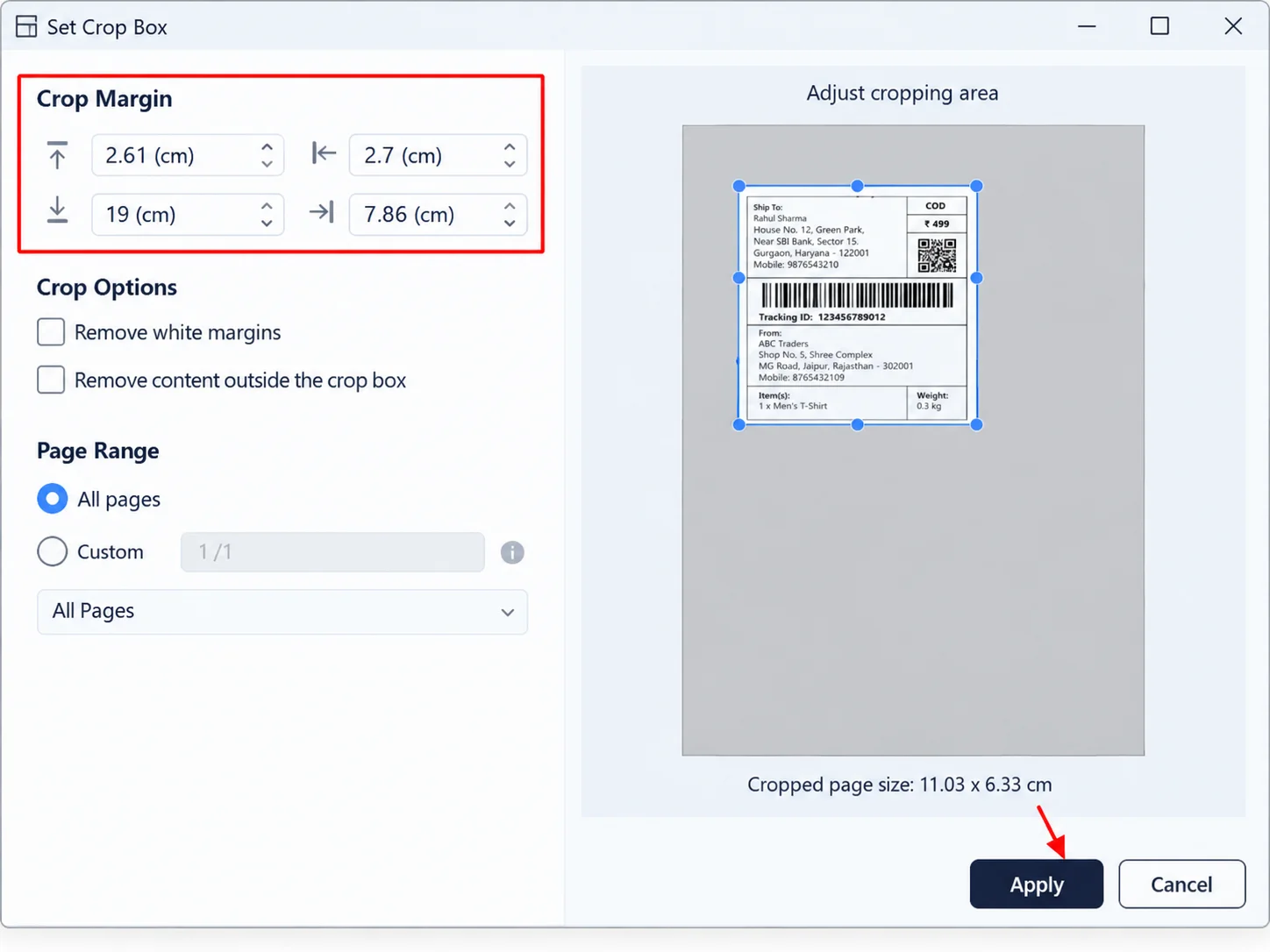
How to crop Meesho label 4x6 PDF online
The easiest way to crop a Meesho label to 4x6 inches is to use a browser-based label cropper, download the prepared file, and check the output before printing your full batch.
Follow these steps:
-
Download your Meesho shipping label PDF. Open your Meesho Supplier Panel and download the shipping-label file for the orders you need to dispatch.
-
Open the SellerLabel Meesho label cropper. Use the tool in your browser. You don't need to install a separate PDF application.
-
Select your PDF. Choose the label file from your computer and check that it loads correctly.
-
Choose the appropriate output format. Select the 4x6 thermal-label option if available for your file layout. Check whether you need the shipping label alone or the invoice as well.
-
Crop and download the result. Review the output before sending it to your printer. Confirm that the address, barcode and other printed details are visible.
-
Print one test label. Set the printer paper size to 4x6 inches and check the result. If it looks correct, print the remaining orders.
That's the basic process. The important part is checking the output before printing a large batch. A file can look fine on your monitor but still print at the wrong size if the printer settings are incorrect.
Why convert Meesho labels to 4x6 inches?
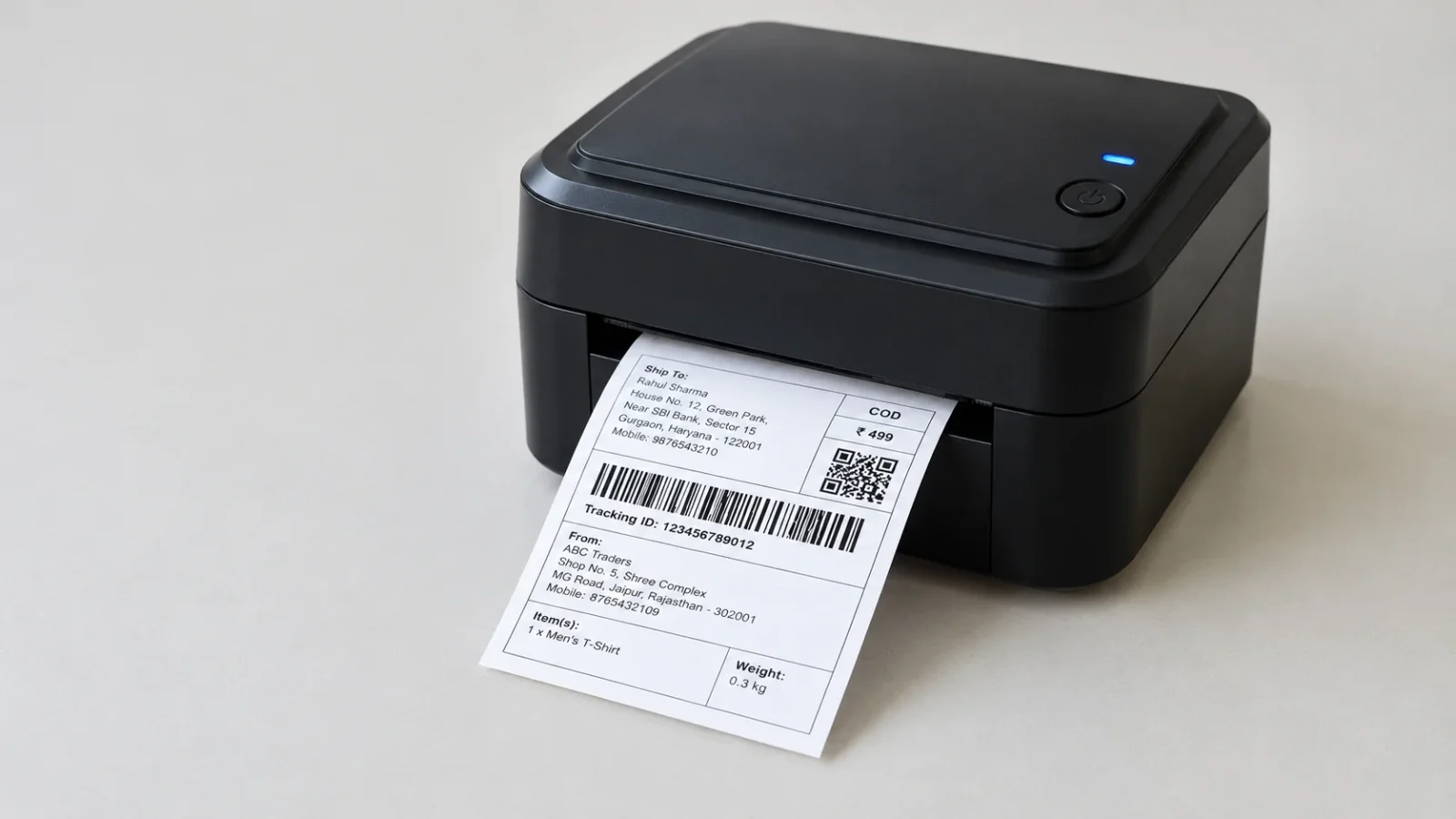
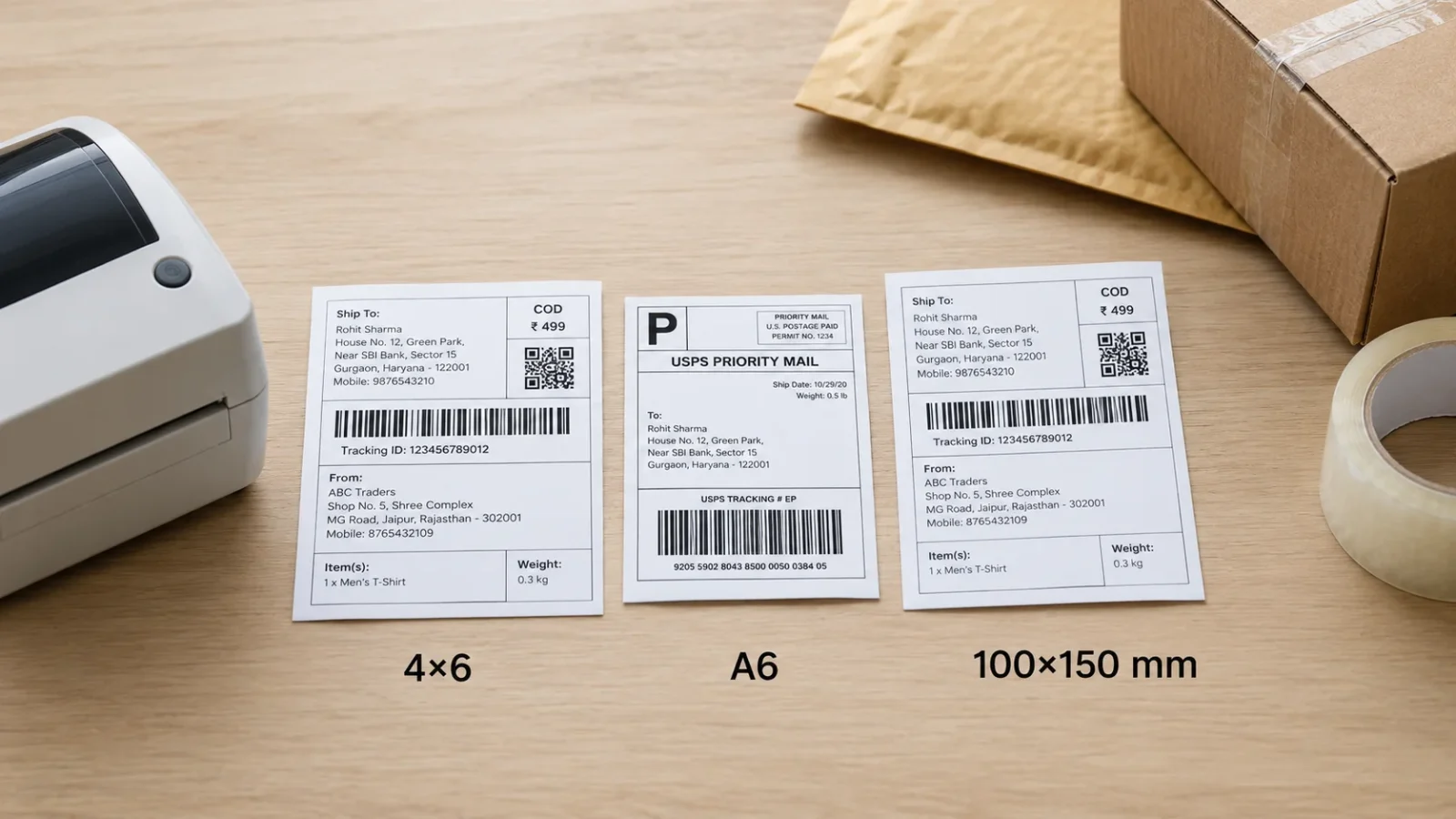
A 4x6-inch label measures approximately 101.6 × 152.4 mm. It's a common format for direct thermal shipping-label printers.
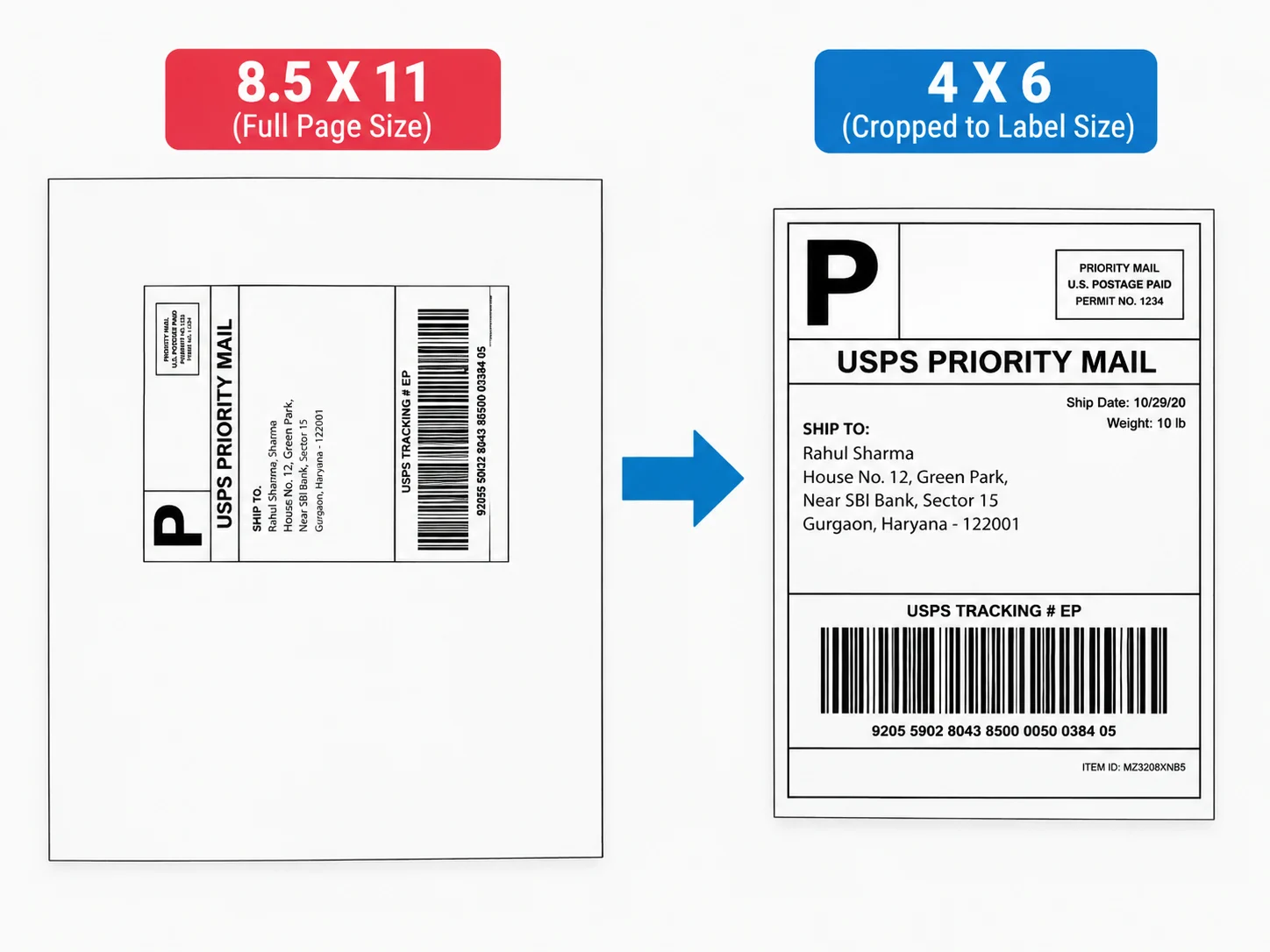
Meesho shipping-label PDFs may be arranged on A4 pages. The exact layout can vary, so the right cropping method depends on how the labels appear in your downloaded file.
Converting the label to the size supported by your printer can help you:
-
Avoid printing a full A4 sheet for every shipping label.
-
Reduce paper handling during packing.
-
Keep label printing separate from invoice printing when your workflow requires it.
-
Prepare several orders in a consistent format.
-
Spend less time manually cropping PDF pages.
For example, if you have 150 orders ready for dispatch, manually opening and adjusting each label can become a repetitive job. Preparing the PDF in one batch, then checking a few output labels, makes the packing process easier to manage.
Remember that the label's physical size is only one part of the job. The barcode and shipping details must also remain clear.
How to print Meesho labels on a 4x6 thermal printer
After cropping the PDF, check your printer settings before printing the whole batch.
1. Select the correct paper size
Set the paper or label size to 4 × 6 inches in your printer preferences or print dialog. If your printer software offers a custom-size option, enter the dimensions supported by your printer.
Selecting A4 by mistake may cause the label to shrink, appear in a corner, or print across an unexpected area.
2. Check scaling and orientation
For a PDF that is already sized correctly, start with Actual Size or 100% scale. Avoid Fit to Page if it changes the label dimensions.
If the output is clipped, don't immediately shrink the label. First check the page size, orientation, printable area and paper settings. The correct setting depends on the PDF and printer driver.
3. Check the barcode and address
Before printing the full batch, inspect one physical label. Make sure:
-
The complete shipping address is visible.
-
The barcode isn't cut off at the edge.
-
The text is dark enough to read.
-
The label isn't stretched or squeezed.
-
The printed dimensions match the label roll.
If a barcode looks blurry, check the print quality, scaling and printer condition before printing more labels.
For a printer purchase or setup, use this 4x6 thermal label printer checklist to review the practical points before you start.
Meesho label crop with invoice or without invoice?
This depends on what your downloaded PDF contains and how you prepare your parcels. A shipping label and an invoice serve different purposes, so don't remove invoice pages without checking what you need for that order.
| Your requirement | What to prepare | What to check |
|---|---|---|
| Shipping label only | Crop the shipping-label area to 4x6 | Full address and barcode are visible |
| Shipping label and invoice | Keep the required invoice separately or use a supported layout that retains it | Invoice details remain readable |
| Labels arranged on A4 | Use a cropper that supports your PDF layout | Every label is separated correctly |
| Several orders in one PDF | Process the batch together if the tool supports it | No labels are missing or duplicated |
If you want to keep the invoice, check the cropper's available output options before processing the file. Don't assume that every 4x6 output will include the invoice.
For a more specific walkthrough, read how to crop Meesho labels to 4x6. If you're preparing labels for another marketplace, SellerLabel also has a dedicated Flipkart label crop tool.
Common Meesho label cropping problems and fixes
A few quick checks can prevent wasted labels and repeat printing.
The cropped PDF is blank
Make sure the original PDF opens correctly. If it does, reload the file in the cropper and try again. A damaged PDF or an unsupported file layout may prevent the expected output from appearing.
The shipping address is cut off
The crop area may be too small or positioned incorrectly for that PDF layout. Preview the output and check the edges before printing. Don't use the same manual crop settings for different layouts unless you've confirmed they match.
The label prints too small
Check whether the print dialog is set to Fit to Page, A4 or another paper size. Select the correct 4x6 label size and use Actual Size or 100% when the output PDF is already correctly sized.
The barcode looks blurry
Check whether the label was scaled up or down, and inspect the print quality. Avoid repeatedly resizing an already prepared label image. A correctly sized PDF and a clean print head can help produce clearer results.
Some labels are missing from the batch
Compare the number of labels in the original file with the output. If the PDF contains multiple labels per page, confirm that the selected crop method supports that layout. Open several output pages, not just the first one.
The invoice disappeared
Check whether the selected output is designed to retain only the shipping label. If you need the invoice, choose a supported option that preserves it or keep the invoice file separately.
How to crop Meesho labels in bulk
When you've got dozens or hundreds of orders, the best approach is to check the process before committing to a full print run.
Use this workflow:
-
Download the label PDF for the orders you're preparing.
-
Open it and confirm the number and arrangement of labels.
-
Process the PDF using the appropriate options in the Meesho label crop tool.
-
Check the first few cropped labels, including labels from different pages.
-
Print one test label and verify its dimensions.
-
Compare the output with your order list to catch missing or duplicated labels.
-
Print the remaining batch once the test is correct.
Suppose you have 200 parcels on your packing table. Discovering a sizing problem after printing all 200 labels means extra paper, time and rework. Testing one label first is a simple habit that can save trouble.
If you also sell on Amazon, use the dedicated Amazon label crop tool for the relevant marketplace PDF rather than assuming every platform uses the same layout.
SellerLabel offers more than label cropping. You can explore the seller tools collection for other tasks, including invoice preparation and PDF handling. The free browser-based workflow also means you don't need to upload shipping-label files to a server to use the cropper.
Frequently asked questions
1. How do I crop a Meesho label to 4x6 PDF online?
Download your Meesho shipping-label PDF, open the SellerLabel Meesho label crop tool, and select your file. Choose the appropriate 4x6 output option, crop the labels, and download the result. Preview the file and print one test label before processing your full order batch.
2. How can I create a 4x6 shipping label?
Use a label PDF that can be prepared for a 4x6-inch output, or create a correctly sized label using suitable software. Set the printer paper size to 4x6 inches and check scaling before printing. Always confirm that the complete address and barcode fit within the printable area.
3. What is the size of a Meesho shipping label?
A 4x6 shipping label measures 4 inches by 6 inches, or approximately 101.6 by 152.4 mm. However, the dimensions and arrangement in a downloaded Meesho PDF may differ from the final thermal-label size. Check the source PDF and the cropped output before printing.
4. How do I print 4x6 shipping labels on a thermal printer?
Open the prepared label PDF and select your thermal printer. Set the paper size to 4x6 inches, check orientation, and use Actual Size or 100% scale when appropriate. Print a test label to verify the address, barcode, dimensions and margins before printing the rest of your orders.
5. Can I crop Meesho labels without installing software?
Yes. A browser-based label cropper can prepare supported shipping-label PDFs without a desktop installation. SellerLabel processes files in your browser, and the files aren't uploaded to its server. You can open the tool, prepare your label, download the result and print it using compatible printer software.
6. Should I keep the invoice when cropping Meesho labels?
Keep the invoice if your order workflow requires it. A shipping label and an invoice are separate documents, and a cropper that outputs only the label may leave the invoice out. Check the available output options and retain the invoice separately if necessary.
Get your Meesho labels ready for printing
If your Meesho PDF is in A4 format but your printer uses 4x6-inch labels, prepare the file before starting your packing run. Check the layout, crop the labels, verify the barcode and print one test label.
Start with the free SellerLabel Meesho label crop tool, then print your remaining orders once the output looks correct.
No comments yet. Be the first to share your thoughts.